Fraud Blocker
Automations

Take routine tasks off your team's hands

Let Fresh KDS handle recurring screen actions and customer updates. Start with a template or build rules for the way your kitchen works.

Upgrade plan
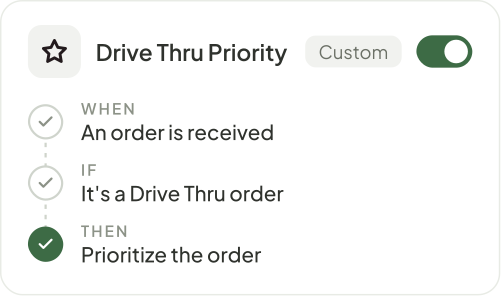
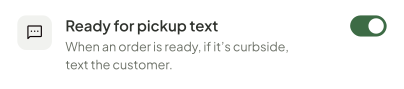
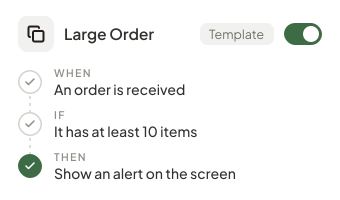
A custom Drive Thru Priority automation: when an order is received, if it's a Drive Thru order, prioritize the orderLong Cook Time automation, switched onCreate Automation buttonLarge Order template: when an order is received, if it has at least 10 items, show an alert on the screen

Keep your team focused on the food

Catch important details

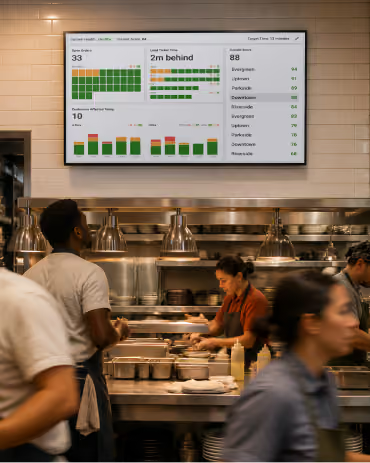
Give the team a heads-up on slow-cook items and large orders so they can plan the work before it backs up.

Skip repeated steps

Automate routine screen actions and customer updates so staff can spend more time preparing food and getting orders out.

Fit your kitchen's flow

Choose responses for your menu, order types, and pickup routines so Fresh KDS supports the way your team works.

Ready-made automations

Give routine tasks an automatic response.

Call out slow-cook items, get a heads-up on large orders, or bring ready orders forward. Start with a template and adjust it for your kitchen.
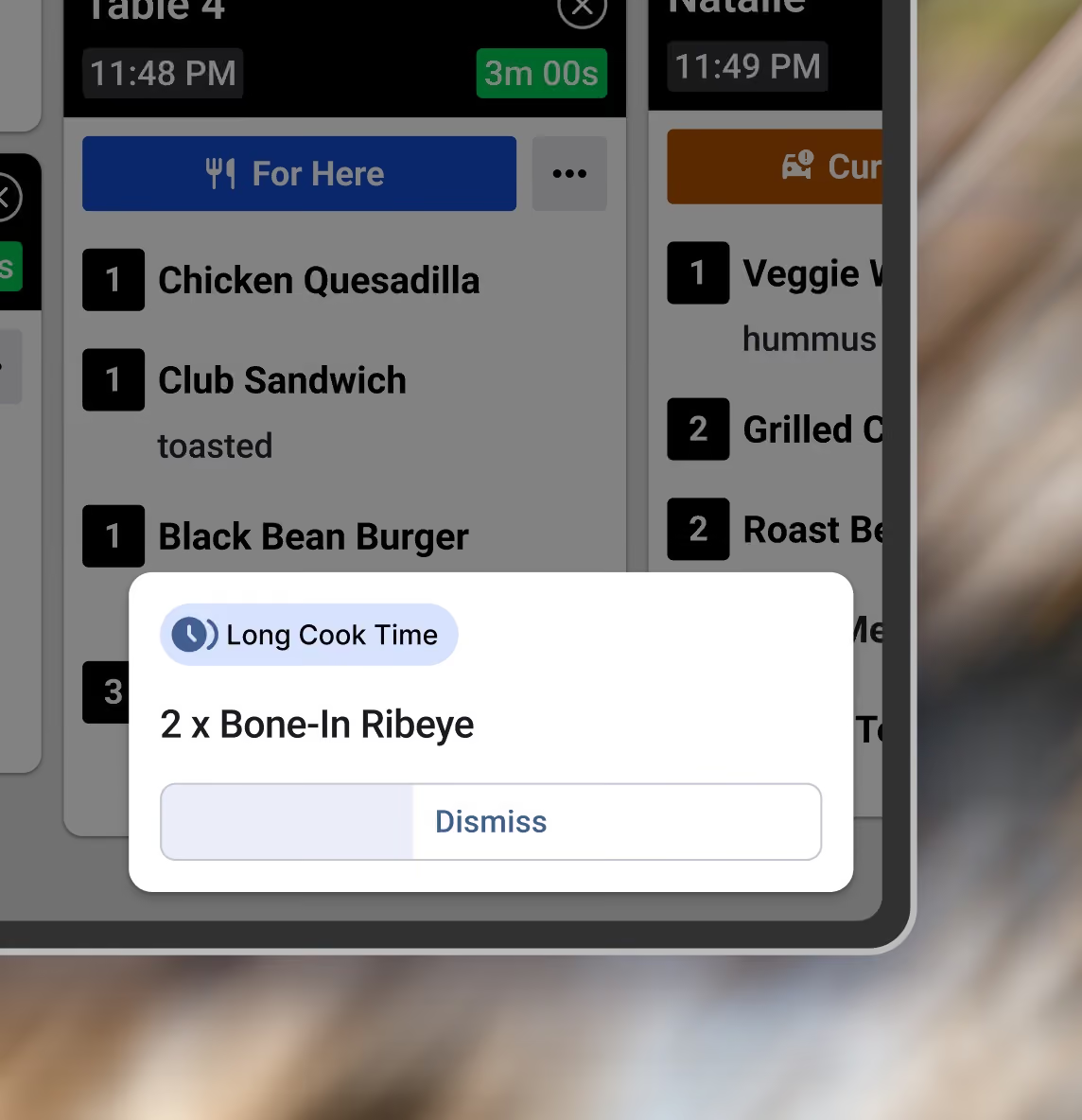
A Long Cook Time alert on a Fresh KDS screen for 2 x Bone-In Ribeye, with a Dismiss button that counts down
Long Cook Time
When an item is received and has a long cook time, show an alert on the screen.
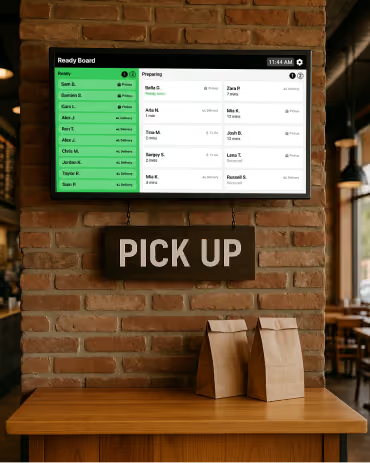
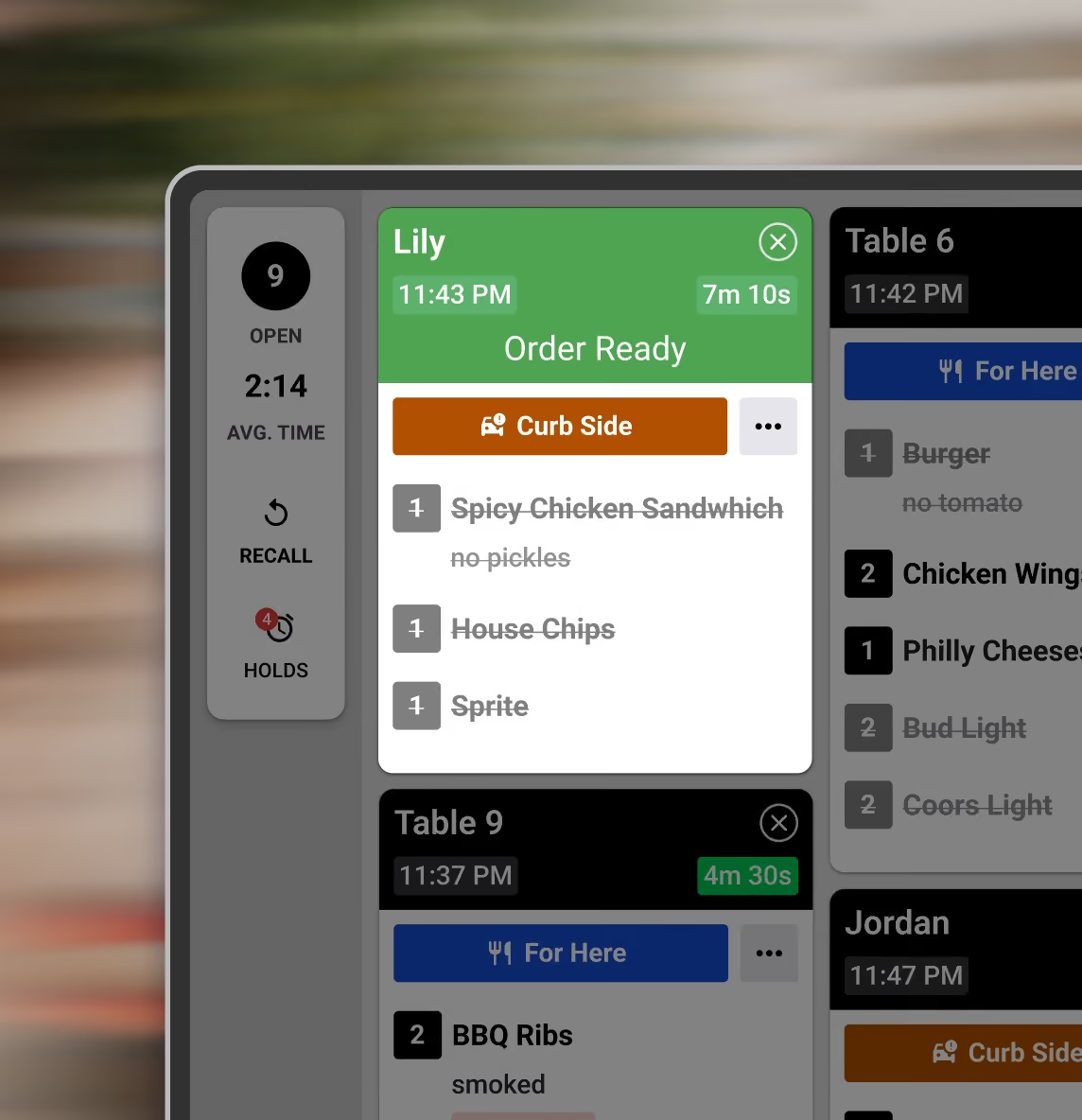
A Fresh KDS expo screen with a ready order, every item crossed out, moved to the front of the queue
Move Ready Orders to Front
When an order is ready, move the order to the front.
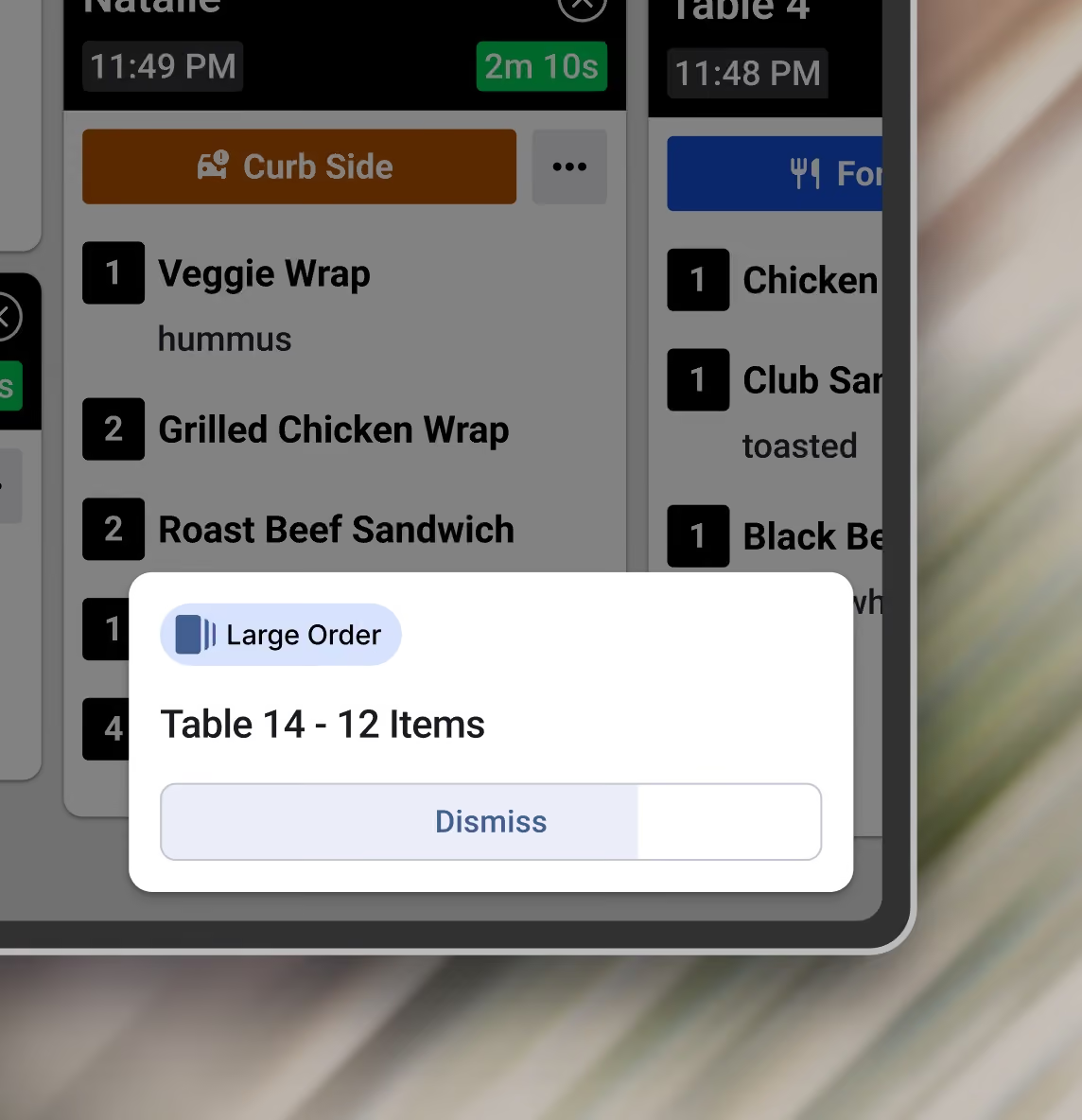
A Large Order alert on a Fresh KDS screen for Table 14 with 12 items, with a Dismiss button that counts down
Large Order
When an order is received, if it has at least 10 items, show an alert on the screen.
Custom automations

Tailor automations to your exact needs

Match a kitchen event with the details that matter, then choose one or more actions. Build rules for your menu, orders, and workflow.

Upgrade plan
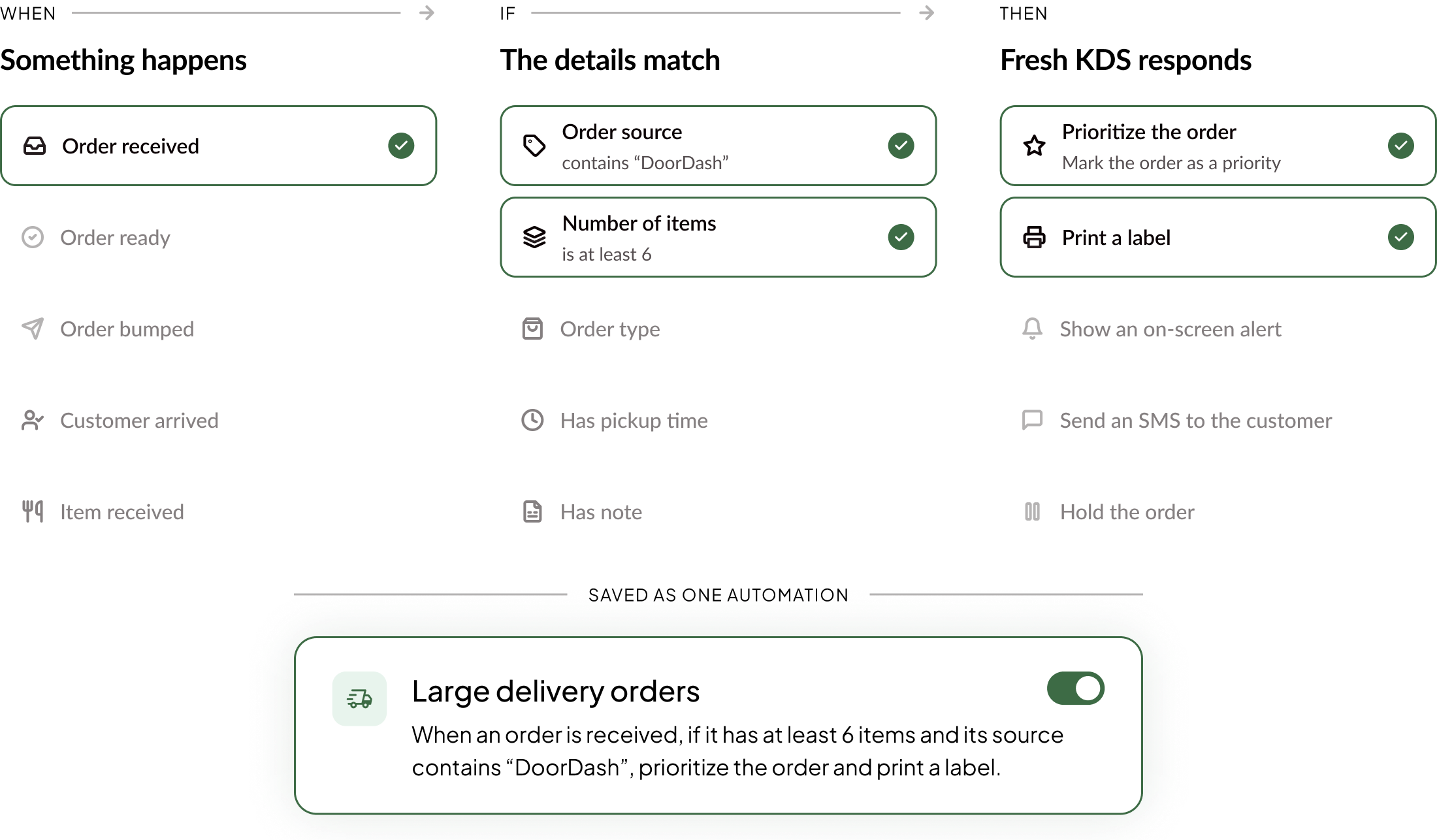
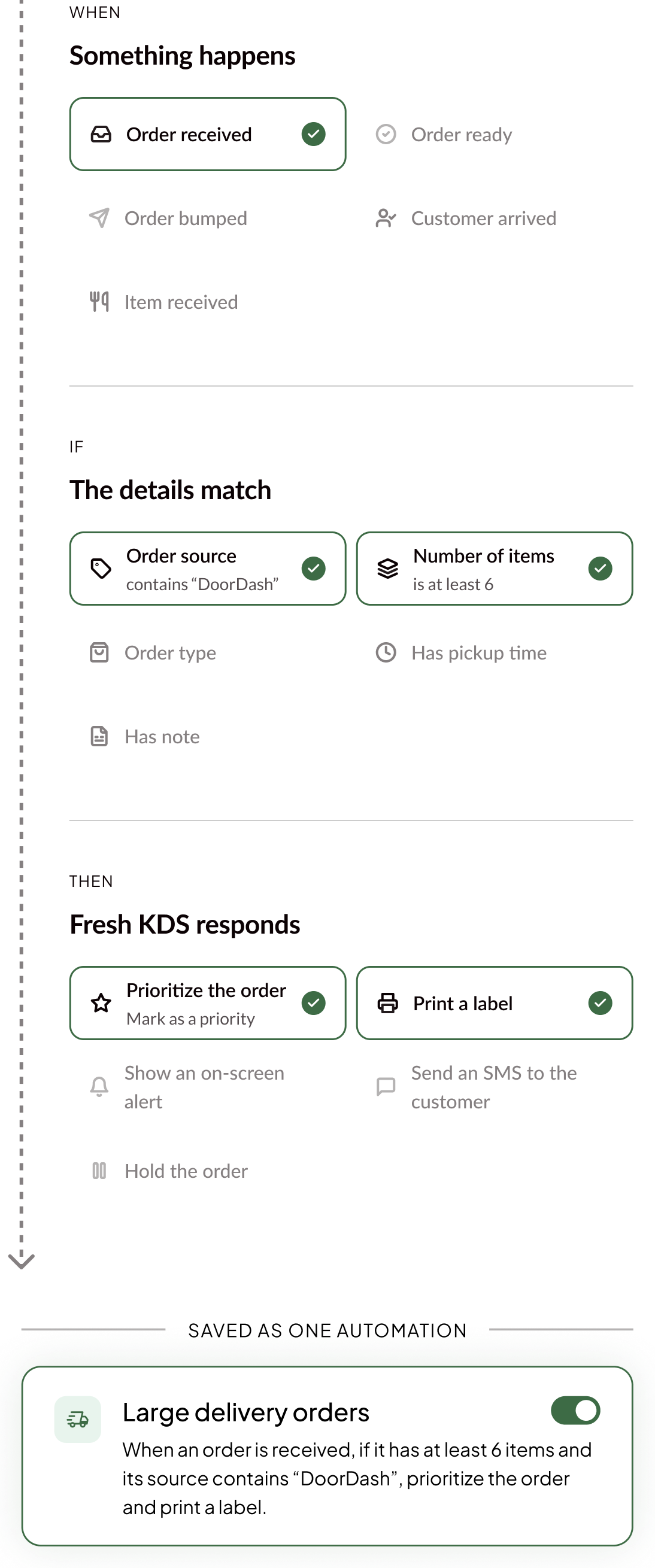
Building a custom automation: when an order is received, if its source contains DoorDash and it has at least 6 items, prioritize the order and print a label, saved as Large delivery ordersBuilding a custom automation: when an order is received, if its source contains DoorDash and it has at least 6 items, prioritize the order and print a label, saved as Large delivery orders
Manage your automations

Create once. Deploy everywhere.

Choose where it runs

Assign a saved automation to one screen or reuse it across the stations and locations that need it.

Update a shared rule

Edit it in your library and see how many screens the change will affect before you save.

Turn it on or off

Stop a shared automation across its assigned screens, then turn it back on whenever you need it.
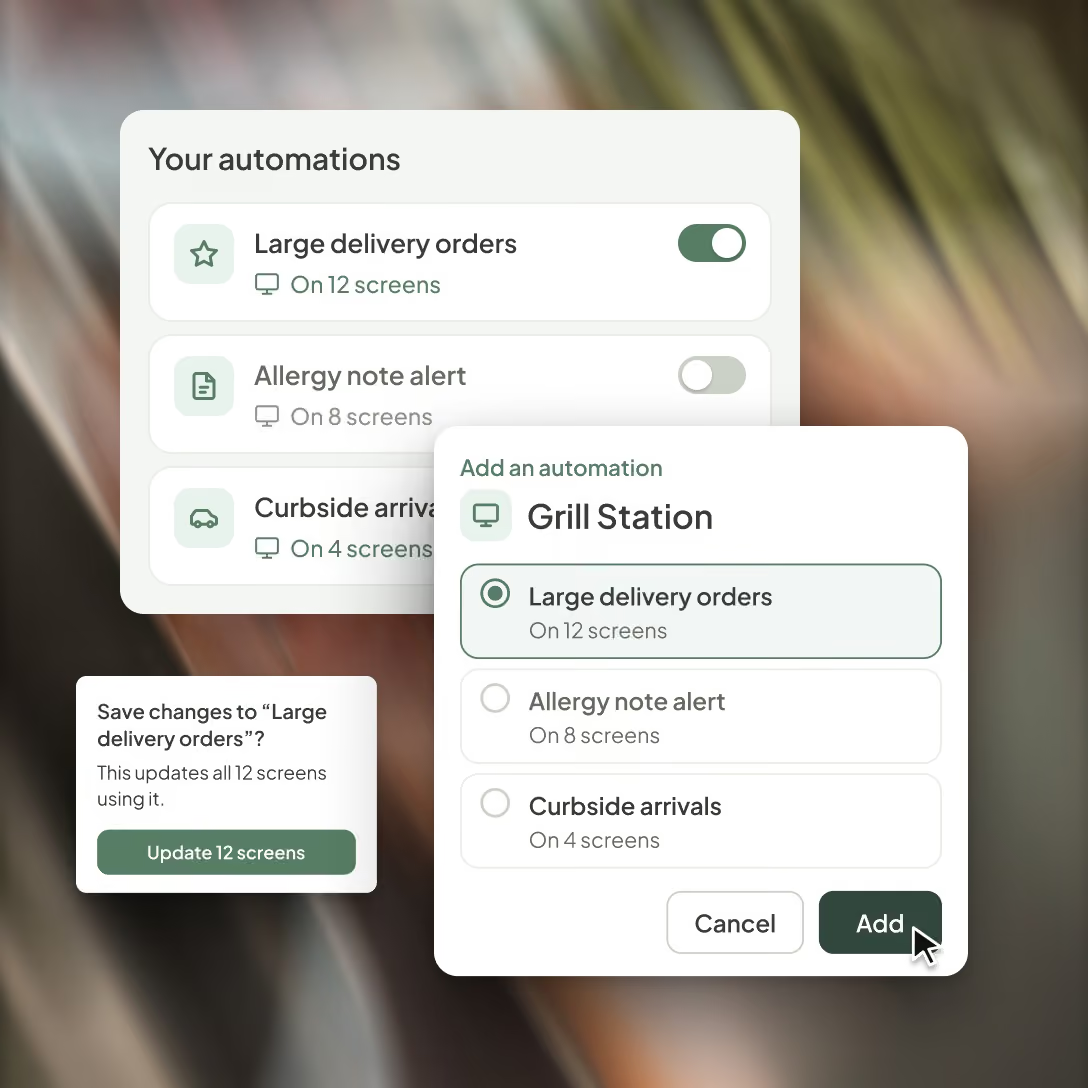
Managing automations in Fresh KDS: a library with on and off switches, a prompt showing a change will update 12 screens, and Large delivery orders being added to the Grill Station screen
Plans & Pricing

Upgrade your Fresh KDS plan to gain access

Upgrade your plan today and gain access to powerful features like Automations, Insights, Ingredient All Day Counts, Modifier Styles and more.
Monthly
Yearly (save 20%)
CURRENT PLAN
Essentials
A simple starting point for kitchens replacing paper tickets and improving day-to-day speed.
$20
per month
per screen
billed monthly
$16
per month
per screen
billed yearly
Includes:
iOS and Android compatibility

Fresh KDS works with any tablet/touch screen monitor running iOS 13+ or Android 7+.

Black speech bubble icon with three white dots centered inside.
Move, hold, and recall orders

Rearrange orders on the screen, hold orders until they’re ready to be prepared, and recall previously cleared tickets.

Black speech bubble icon with three white dots centered inside.
Order prioritization

Manually mark critical orders to stand out, or automatically sort orders to ensure they get prepared quickly.

Black speech bubble icon with three white dots centered inside.
Custom timers and alerts

Set specific time thresholds for order statuses, providing visual alerts that help your kitchen staff manage preparation times effectively.

Black speech bubble icon with three white dots centered inside.
Speed of service reports

Get detailed reports on kitchen metrics, enabling data-driven decisions to enhance efficiency and service quality.

Black speech bubble icon with three white dots centered inside.
Sound notifications

Customize notification sounds for new orders, updates, and curbside arrivals—keeping staff informed without disrupting workflow.

Black speech bubble icon with three white dots centered inside.
Most Popular
RECOMMENDED
Premium
For growing kitchens that need better visibility, coordination, and control during service.
$27
per month
per screen
billed monthly
$22
per month
per screen
billed yearly
Everything in Essentials, plus:
Most Popular
Label / Ticket Printing

Take full control of your kitchen’s printing needs directly from Fresh KDS. From complete order tickets to individual item labels.

Black speech bubble icon with three white dots centered inside.
Ingredient All Day Counts

Get real-time ingredient totals across all open orders—no manual counting needed.

Black speech bubble icon with three white dots centered inside.
Screen Communication

Every kitchen is different. Fresh KDS has multiple options for screen communication so you can keep every station in perfect sync.

Black speech bubble icon with three white dots centered inside.
Modifier Styles

Style modifiers by keyword with color and text formatting so critical order details—like allergens or special requests—stand out on screen and reduce costly prep mistakes.

Black speech bubble icon with three white dots centered inside.
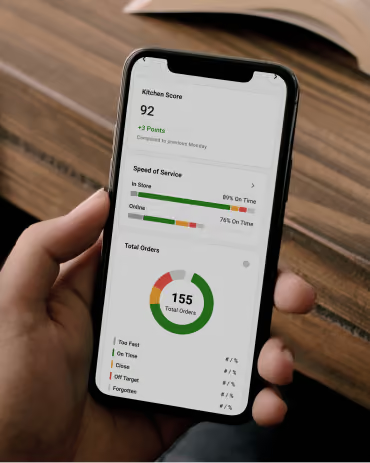
In-App Metrics

Provide real-time kitchen performance insights, displaying average ticket times, order counts, and status breakdowns directly on your KDS.

Black speech bubble icon with three white dots centered inside.
Customer Messaging

Send automated, customizable text messages to customers, keeping them informed about their order status.

Black speech bubble icon with three white dots centered inside.
Upgrade plan

FAQ

Find quick answers to common questions about Automations, how they work, and how to set them up for your kitchen.
Get support
What are Fresh KDS Automations?
Is Automations included in my plan?
How do I set up an automation?
What can an automation do?
How do I choose which screens or locations run an automation?
Does Automations work with my POS?
How do alerts show up in the kitchen?
Can automations text my customers?
Automations

Take repeat tasks off your team's hands.

Get started with Fresh KDS to automate the screen actions and customer updates your team handles every shift.