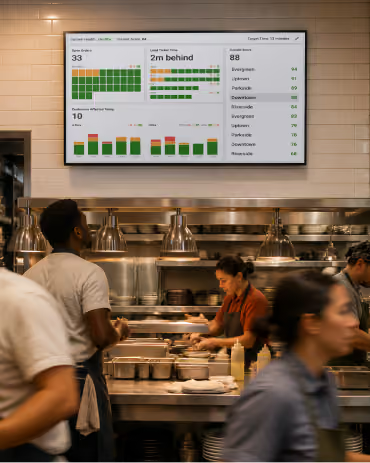
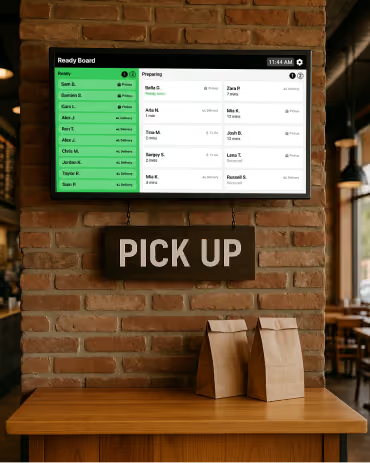
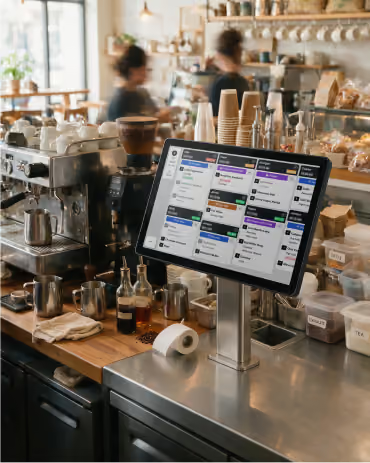
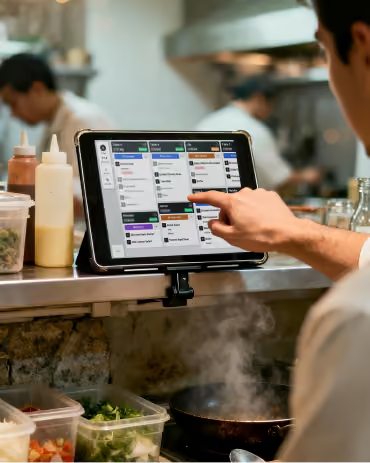
Take routine tasks off your team's hands
Let Fresh KDS handle recurring screen actions and customer updates. Start with a template or build rules for the way your kitchen works.
Get started for freeKeep your team focused on the food
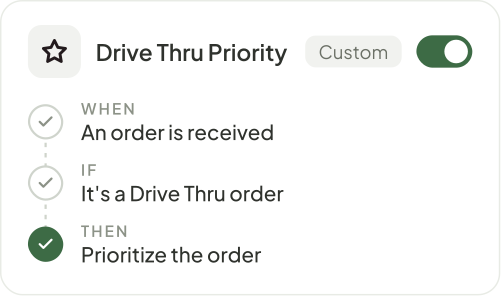
Give routine tasks an automatic response.
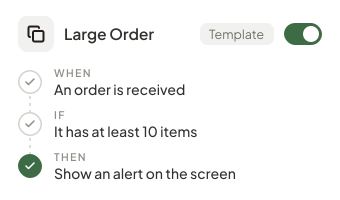
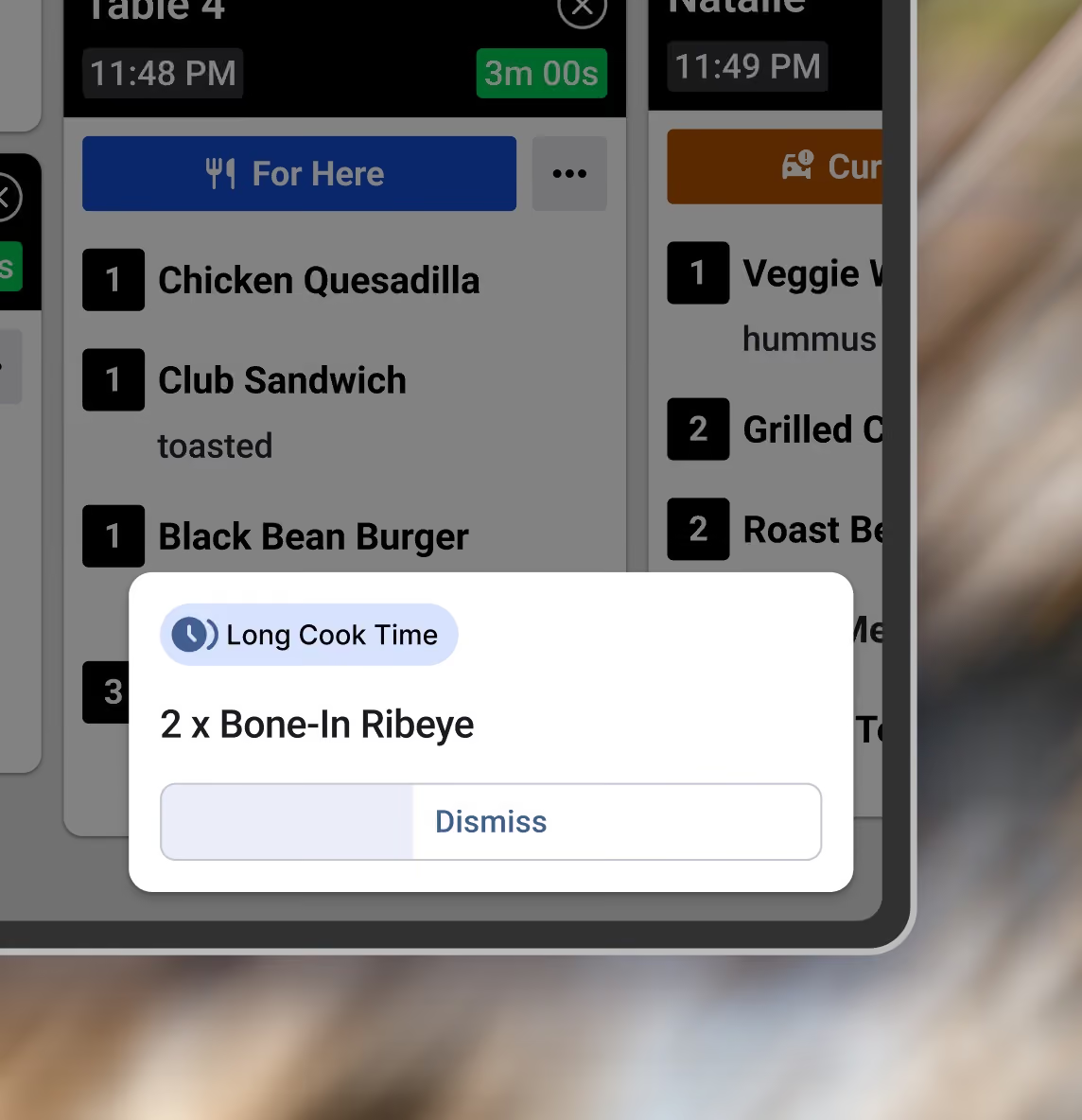
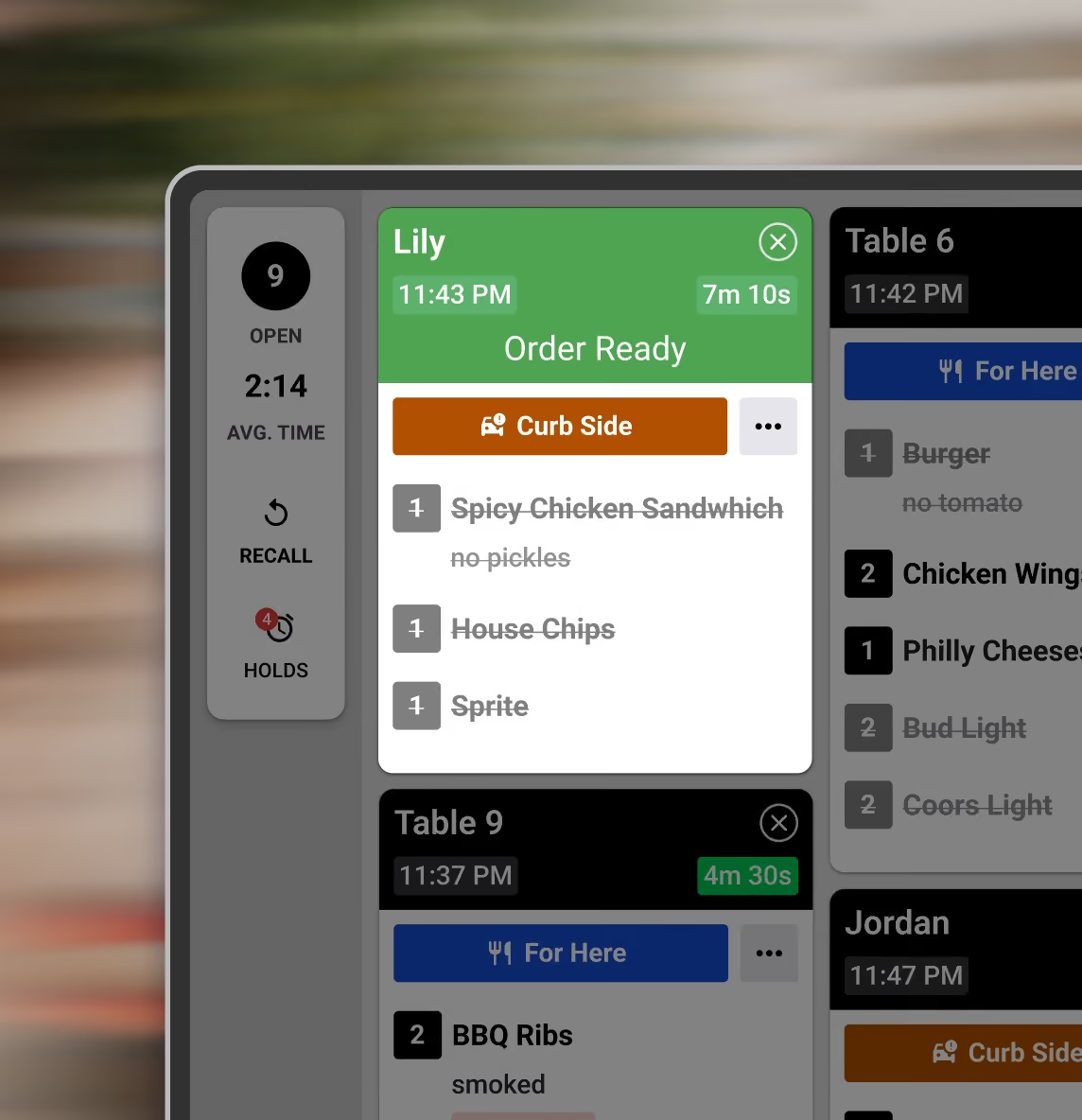
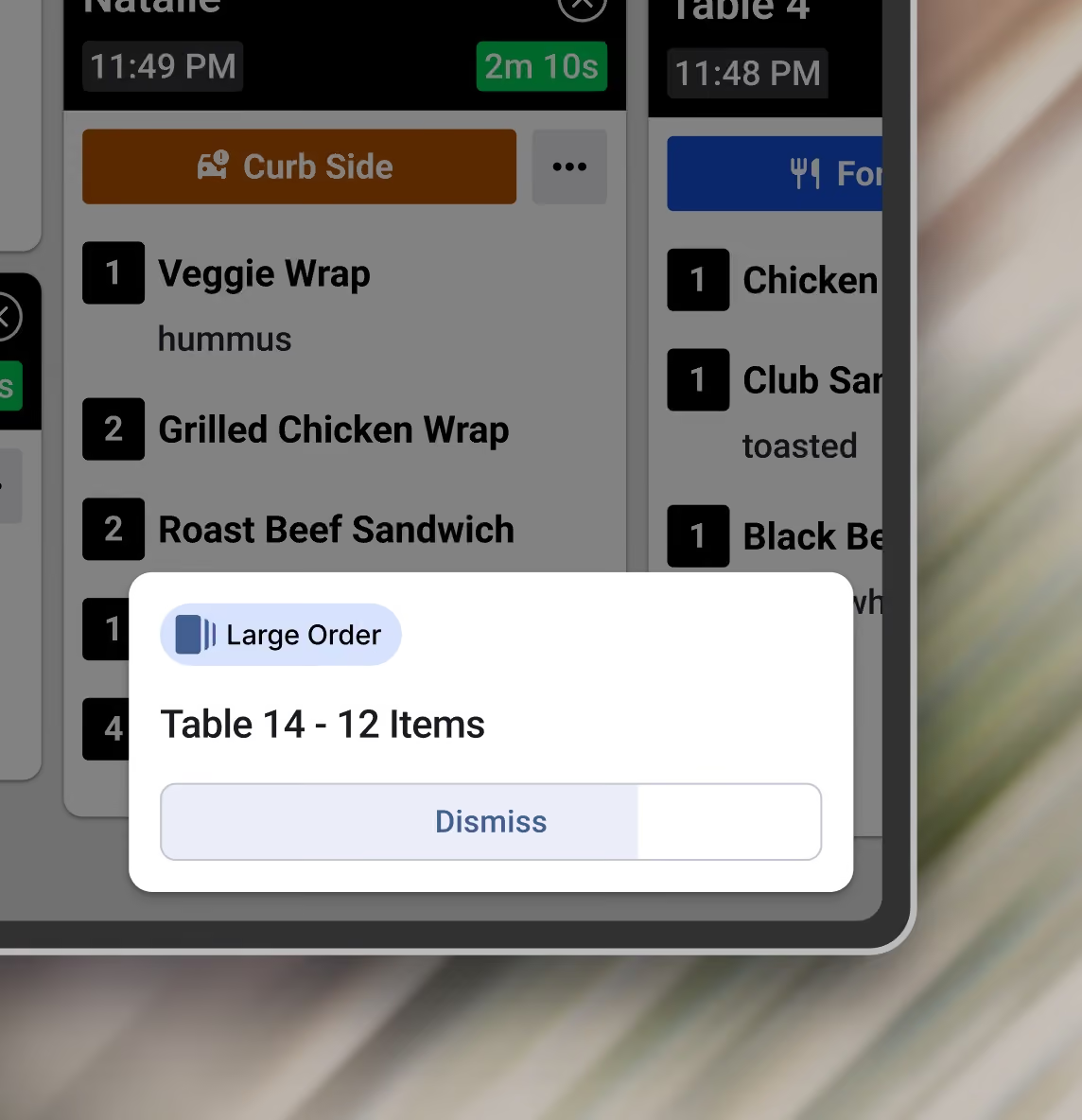
Call out slow-cook items, get a heads-up on large orders, or bring ready orders forward. Start with a template and adjust it for your kitchen.


Tailor automations to your exact needs
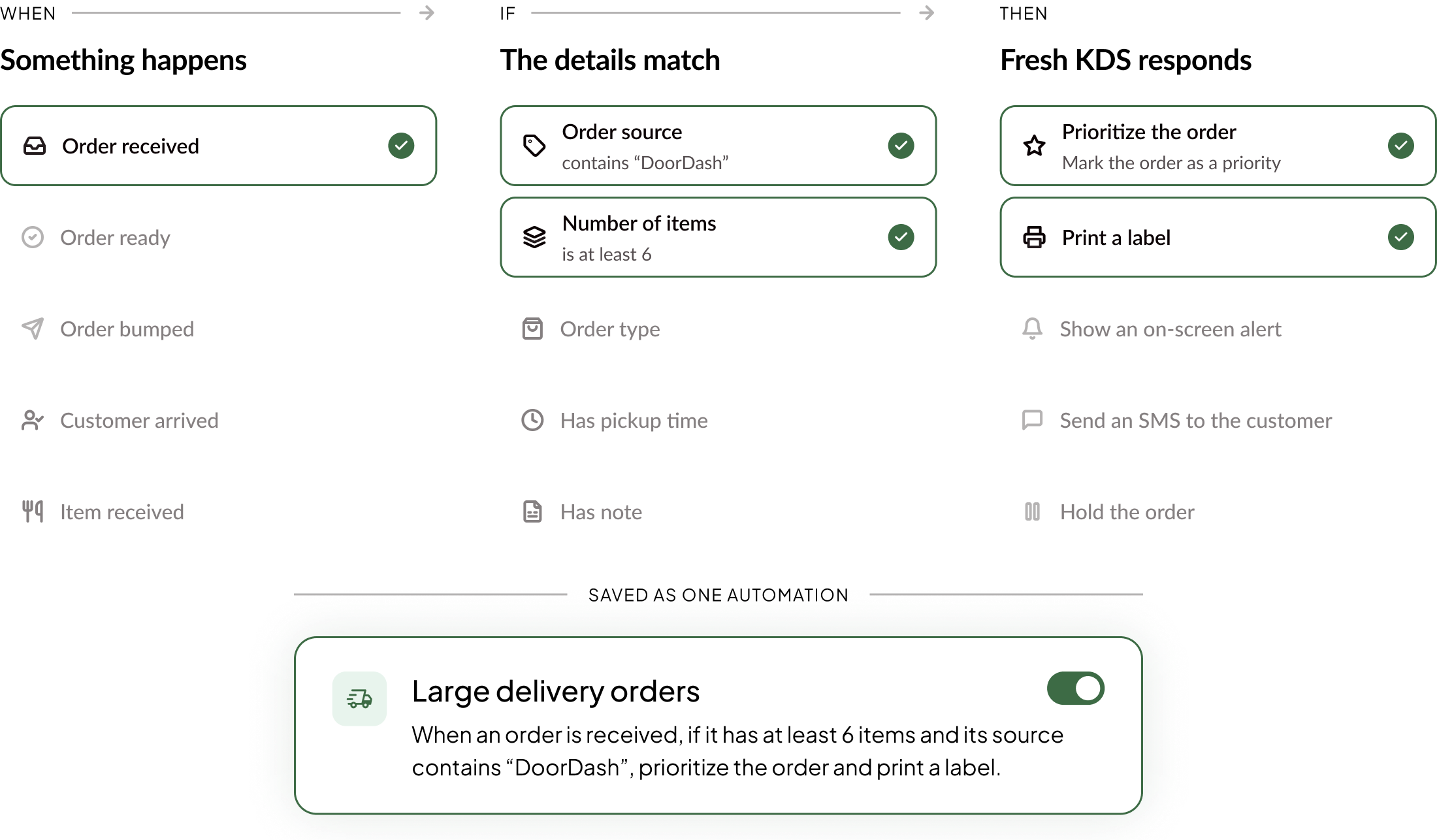
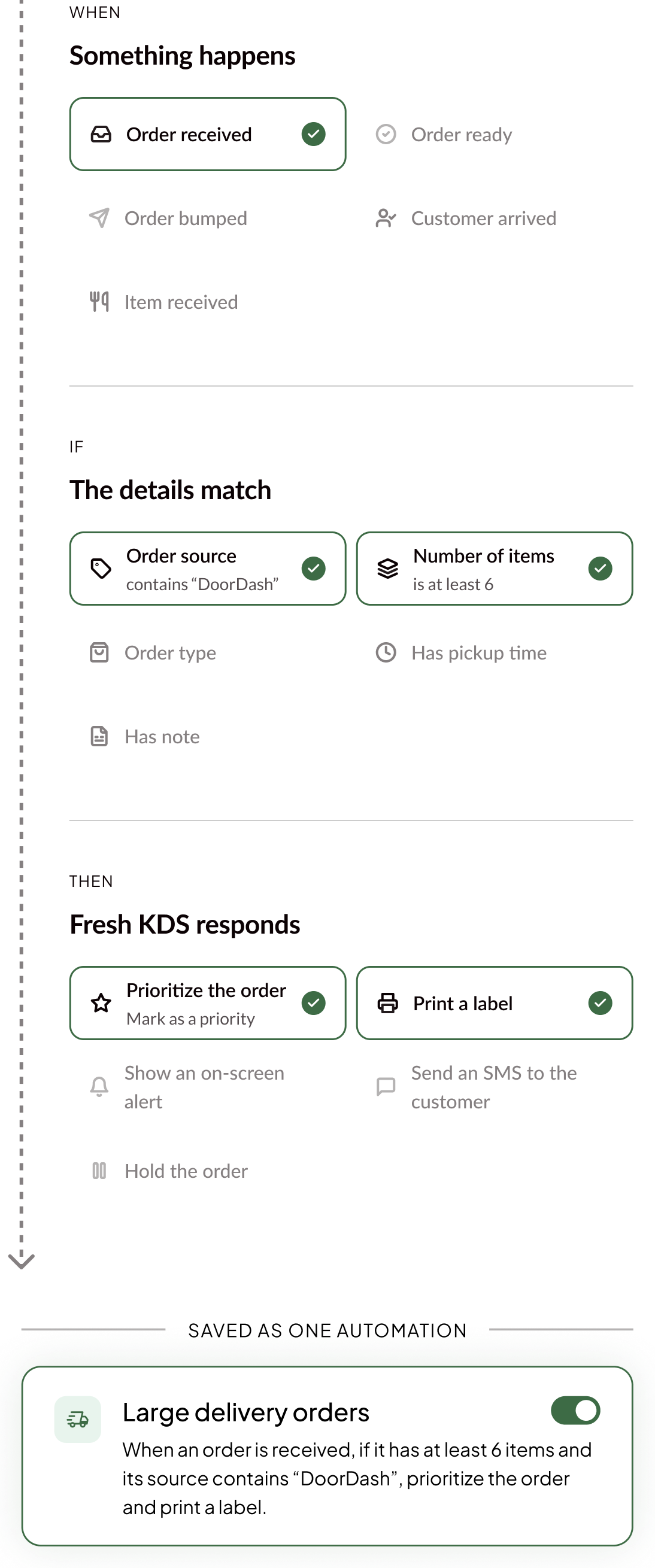
Match a kitchen event with the details that matter, then choose one or more actions. Build rules for your menu, orders, and workflow.
Get started for free
Create once. Deploy everywhere.
Choose where it runs
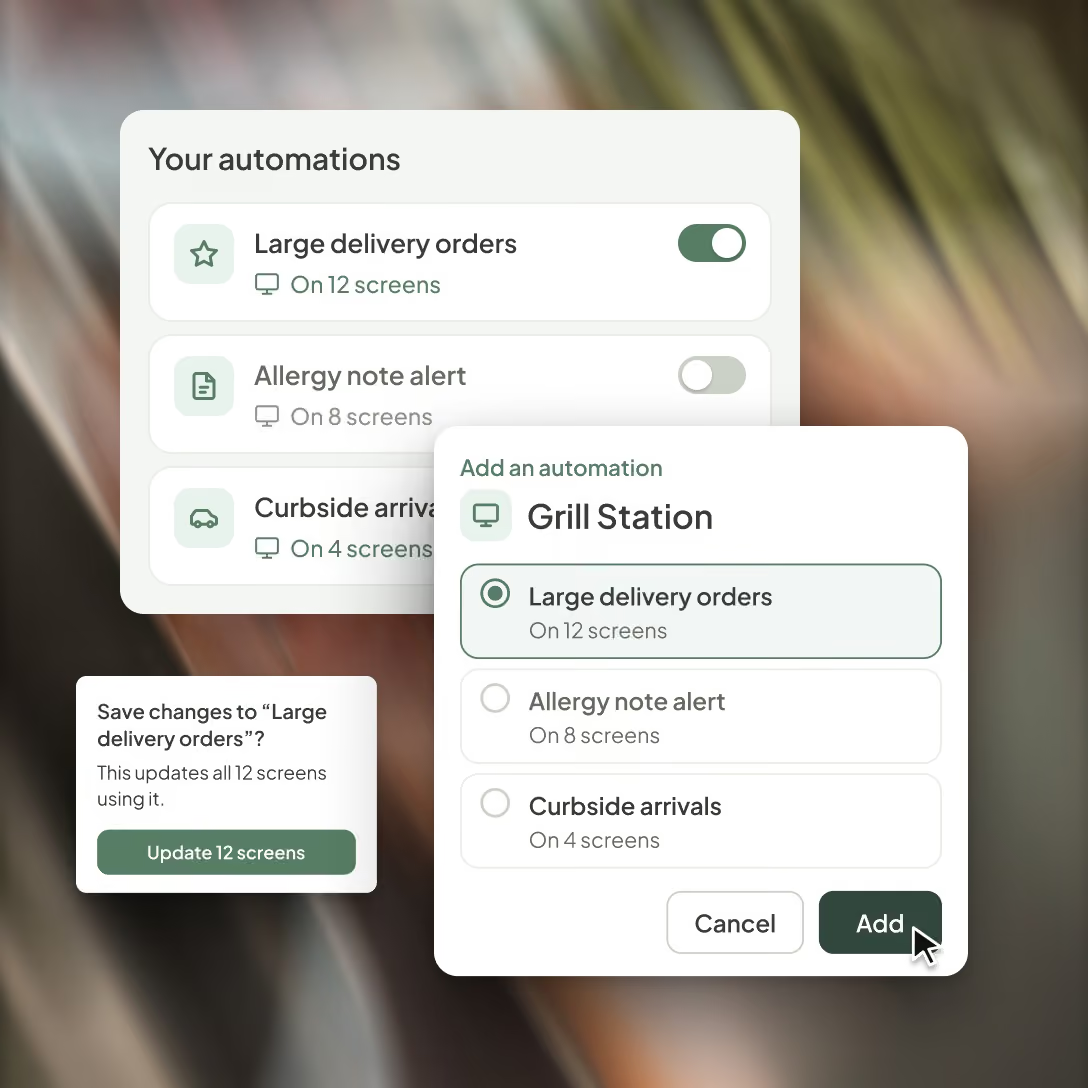
Assign a saved automation to one screen or reuse it across the stations and locations that need it.
Update a shared rule
Edit it in your library and see how many screens the change will affect before you save.
Turn it on or off
Stop a shared automation across its assigned screens, then turn it back on whenever you need it.
FAQ
Find quick answers to common questions about Automations, how they work, and how to set them up for your kitchen.
Automations are rules that make your Fresh KDS screens act on their own. Each one follows When, If, Then: when something happens to an order, if the details match, the screen responds, like showing an alert, printing a ticket or moving the order to the front. Set it up once and it runs every shift. Learn how automations work.
Automations is included with the Fresh KDS Premium plan, and with existing Unlimited plans. If you're on Essentials, upgrade to Premium to start using templates and custom automations.
Turn on Long Cook Time, Large Order or Move Ready Orders to Front right on a screen, under Settings > Automations in the KDS app. To build your own, use the web app: pick a trigger, conditions and actions, and the builder reads the rule back as a plain sentence before you save. See how to build a custom automation.
Automations start from order and item events, like an order arriving or becoming ready, an item coming in, or a customer arriving for pickup. From there, an automation can show an on-screen alert, text the customer, print a ticket or label, prioritize the order, move it to the front or back of the queue, hold it, or hide it from a screen. One automation can run several actions in a row. See every trigger, condition and action.
Build it once in your brand's automation library, then turn it on for the screens that need it. To roll it out to many screens or locations at once, add it to a Screen Profile, then save and push. Each automation runs only where it's assigned, so your grill and expo screens can follow different rules.
Yes. Automations use the order details your POS already sends to Fresh KDS, so they work with every POS integration with no setup on the POS side. Item rules match names exactly as your POS sends them, so add each version of an item's name, like "Brisket Plate" and "Brisket Platter."
Alerts appear in the corner of the screen with a title and a short message, like "2 x Bone-In Ribeye." They close on their own after 10, 30 or 60 seconds, or when someone taps Dismiss. An alert can also play the screen's new order sound. It's an on-screen sound, not a phone notification.
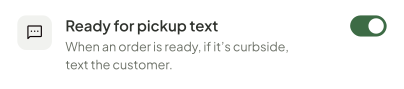
Yes. An automation can send the customer a text, for example when their order is ready or when they arrive for curbside pickup. Texts only go to orders that include a phone number and opted in to messages.
Take repeat tasks off your team's hands.
Get started with Fresh KDS to automate the screen actions and customer updates your team handles every shift.