Fraud Blocker
All Blogs
Kitchen Display Systems

Fresh KDS in Action: A Coffee Shop Configuration Example

See how a busy coffee shop might use Fresh KDS to stay on top of drink orders

ABOUT THIS RESTAURANT

Service Type

Locations:

Location

POS Used

See how Fresh KDS can impact your kitchen efficiency today.
Get started
Simplify your kitchen operations with Fresh KDS.
Get started — it's free

The Setup

Meet Radish Cafe, a fictional coffee shop serving up delicious espresso drinks. Although they don’t actually have a kitchen, Radish Cafe still benefits from using a kitchen display system to display orders at the barista station. 
Serve every order on time

How They Use Fresh KDS

Lightweight Hardware

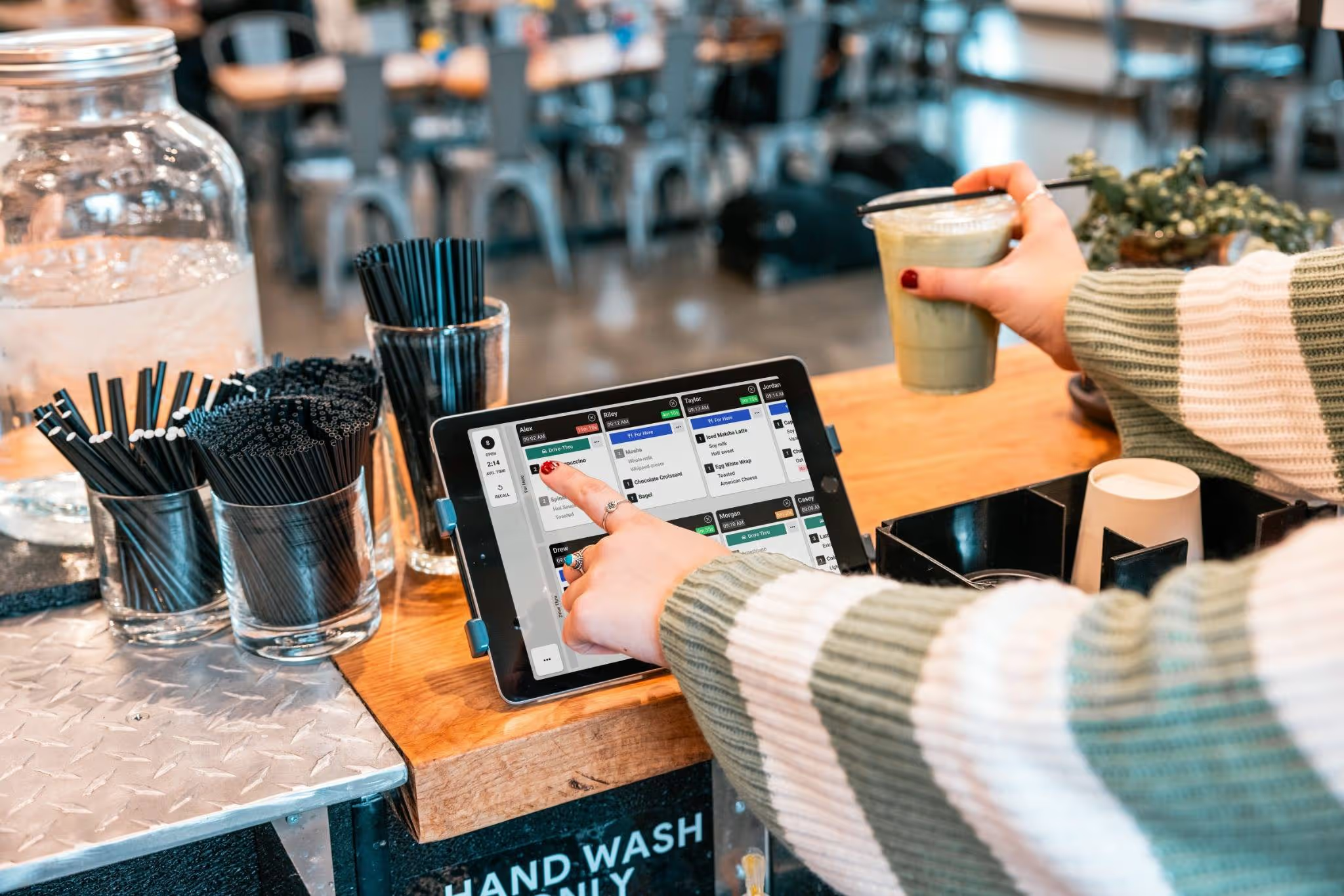
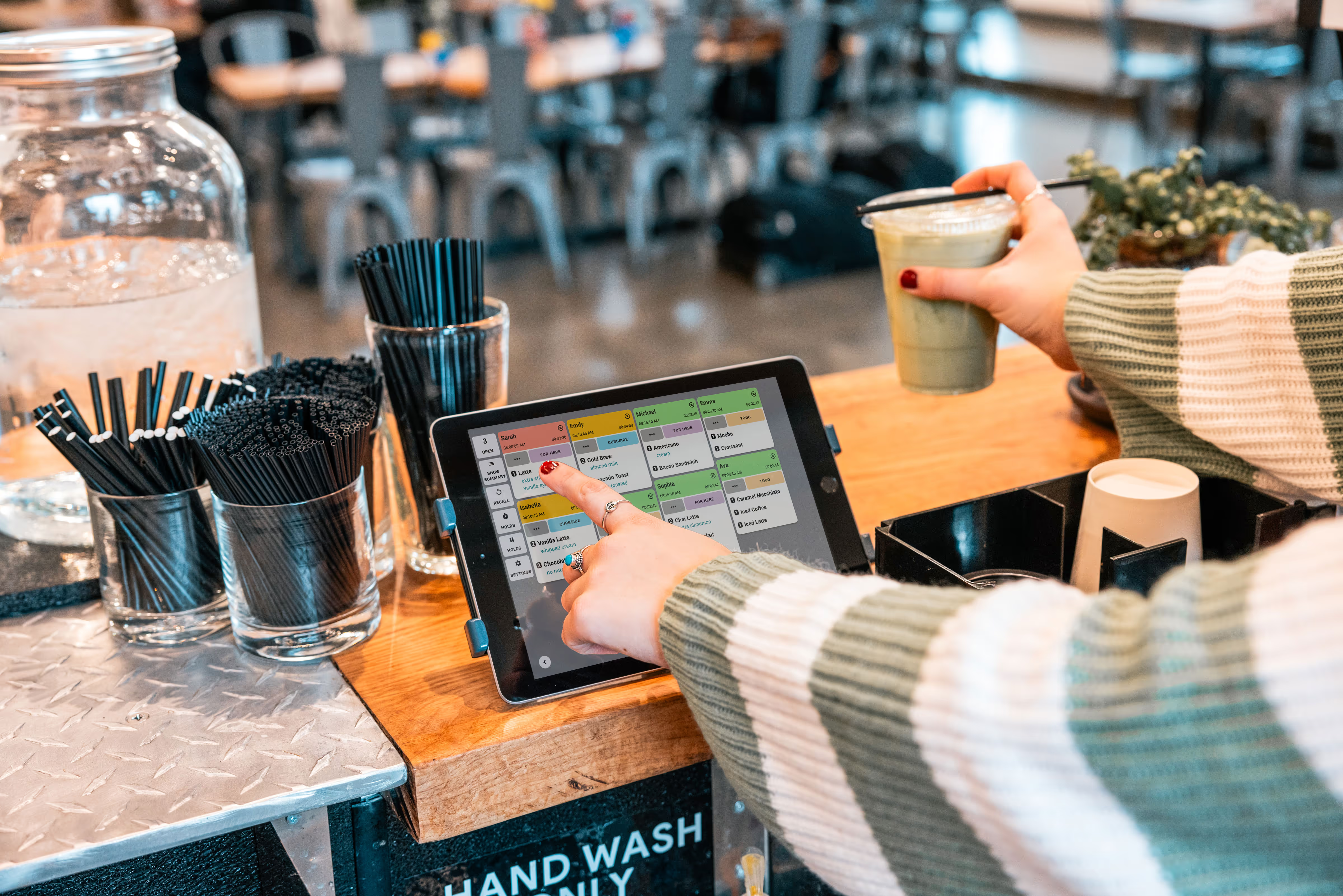
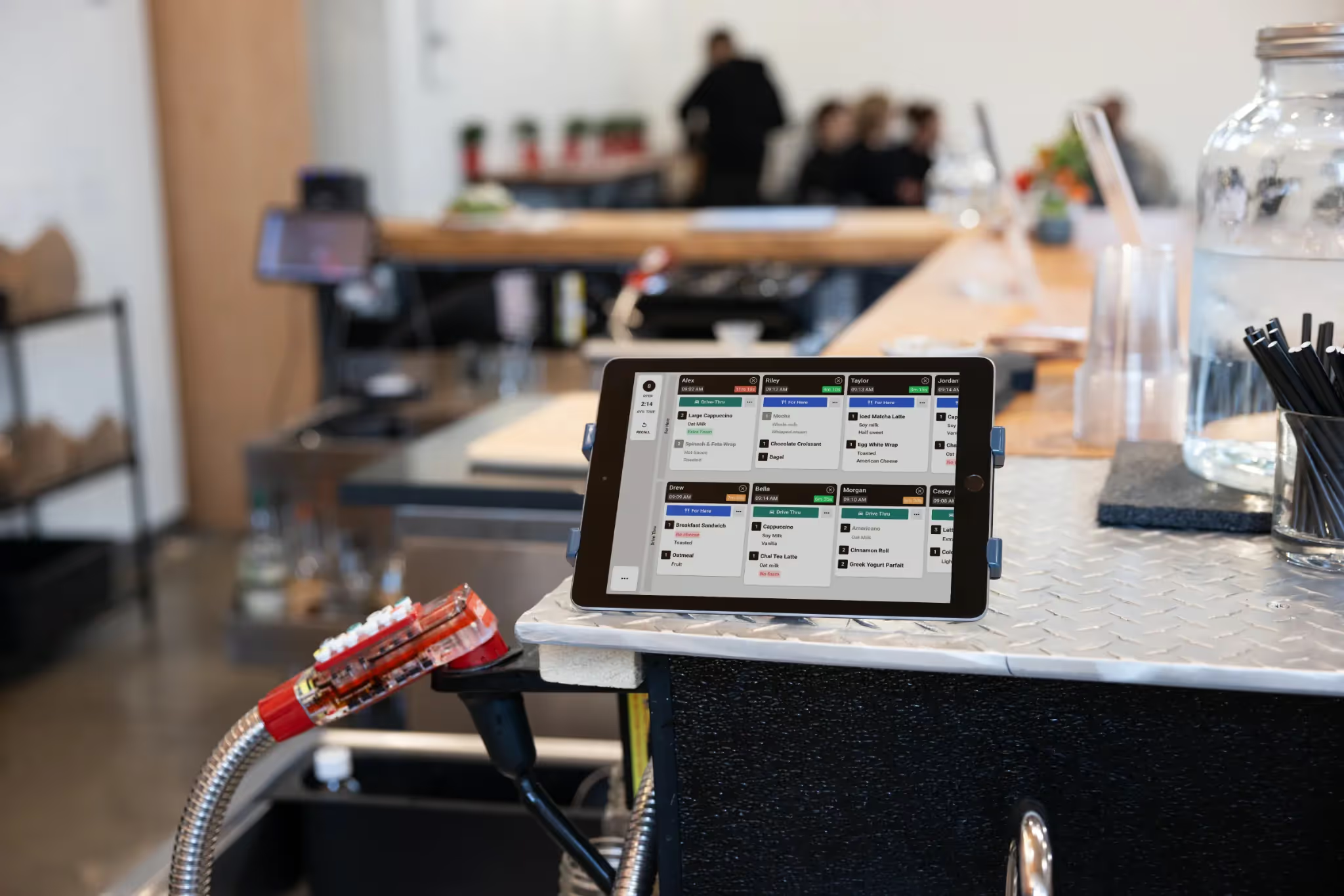
Radish Cafe uses Square for their point of sale, which sends new drink orders directly to an iPad running the Fresh KDS app. Using iOS for both POS and KDS creates a consistent experience for employees, and the up-front cost to try Fresh KDS on an iPad was low. The clear, bright iPad display makes it easy for the barista to read, and the tech blends in well with the cafe’s aesthetic. 
Managing “For Here” versus “To Go” orders

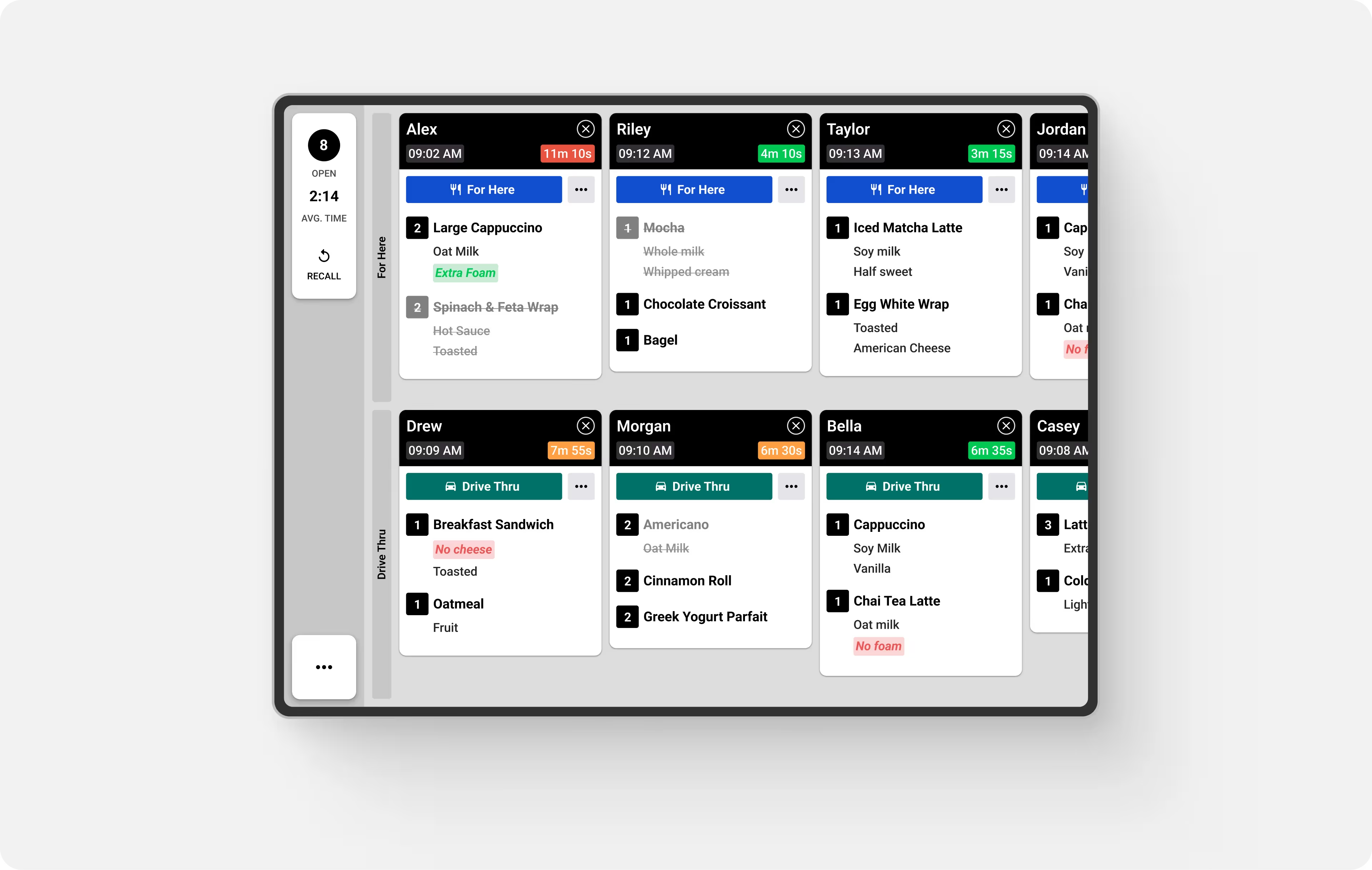
When customers are going to enjoy their drinks in the cafe, Radish serves them in a ceramic mug instead of a to-go cup. To help baristas keep track of which orders need mugs and which orders are to-go they use the Fresh KDS split view, which creates two “rails” on the screen. All the for here orders are on the top row, and all the pickup and to-go orders are on the bottom row. Additionally, Radish integrated Fresh KDS to a sticky label printer, which is used to print labels for the to-go cups. The labels automatically print, one per item including modifiers, when the order is bumped from the screen so the barista can apply them to the cups before handing them off to the customer. 

Improving Drink Accuracy

Espresso drink orders can get complicated with multiple sizes, milk choices, and extra shots or pumps. Before Fresh KDS Radish Cafe often made mistakes with specialty milks, which resulted in higher waste. They decided to use the Fresh KDS modifier styles feature to bold and highlight all milk modifiers in blue. This simple change drew attention to the milk choice, and the cafe saw a significant improvement in making drinks with the right milk the first time. 
Split View

Keeping Track of Large Orders

Most of Radish Cafe’s orders contain just a few drinks, which is very manageable. However, sometimes they’ll get a large pickup order with a lot of items. To keep track of which drinks have been made and which still need to be done, they turned on the Fresh KDS “move completed items to bottom” setting. With this setting turned on, tapping an item to mark it as complete also moves the item to the bottom of the order card. All the un-made items remain at the top. This makes it easier to see at a glance which drinks still need to be prepared, and striking through completed items means they’re less likely to miss a drink on a large order.

Ready to try Fresh KDS in your restaurant?

January 9, 2026

Fresh KDS in Action: A Coffee Shop Configuration Example

The Setup

Meet Radish Cafe, a fictional coffee shop serving up delicious espresso drinks. Although they don’t actually have a kitchen, Radish Cafe still benefits from using a kitchen display system to display orders at the barista station. 

Serve every order on time

How They Use Fresh KDS

Lightweight Hardware

Radish Cafe uses Square for their point of sale, which sends new drink orders directly to an iPad running the Fresh KDS app. Using iOS for both POS and KDS creates a consistent experience for employees, and the up-front cost to try Fresh KDS on an iPad was low. The clear, bright iPad display makes it easy for the barista to read, and the tech blends in well with the cafe’s aesthetic. 

Managing “For Here” versus “To Go” orders

When customers are going to enjoy their drinks in the cafe, Radish serves them in a ceramic mug instead of a to-go cup. To help baristas keep track of which orders need mugs and which orders are to-go they use the Fresh KDS split view, which creates two “rails” on the screen. All the for here orders are on the top row, and all the pickup and to-go orders are on the bottom row. Additionally, Radish integrated Fresh KDS to a sticky label printer, which is used to print labels for the to-go cups. The labels automatically print, one per item including modifiers, when the order is bumped from the screen so the barista can apply them to the cups before handing them off to the customer. 

Improving Drink Accuracy

Espresso drink orders can get complicated with multiple sizes, milk choices, and extra shots or pumps. Before Fresh KDS Radish Cafe often made mistakes with specialty milks, which resulted in higher waste. They decided to use the Fresh KDS modifier styles feature to bold and highlight all milk modifiers in blue. This simple change drew attention to the milk choice, and the cafe saw a significant improvement in making drinks with the right milk the first time. 

Split View

Keeping Track of Large Orders

Most of Radish Cafe’s orders contain just a few drinks, which is very manageable. However, sometimes they’ll get a large pickup order with a lot of items. To keep track of which drinks have been made and which still need to be done, they turned on the Fresh KDS “move completed items to bottom” setting. With this setting turned on, tapping an item to mark it as complete also moves the item to the bottom of the order card. All the un-made items remain at the top. This makes it easier to see at a glance which drinks still need to be prepared, and striking through completed items means they’re less likely to miss a drink on a large order.

Ready to try Fresh KDS in your restaurant?

Switch to Fresh KDS with confidence

Follow this step-by-step guide for a quick and stress-free switch from Square KDS to Fresh KDS.

Why Speed of Service Matters

See why speed and consistency are key to restaurant success, improving guest satisfaction, revenue, and efficiency.

Get started for free.

Begin your Fresh KDS 7-day trial today by setting up your account. The process is completely free, and only takes a few minutes. No credit card is needed, and you can cancel anytime.

Get started - it's free
Boosting kitchen EFFICIENCY at