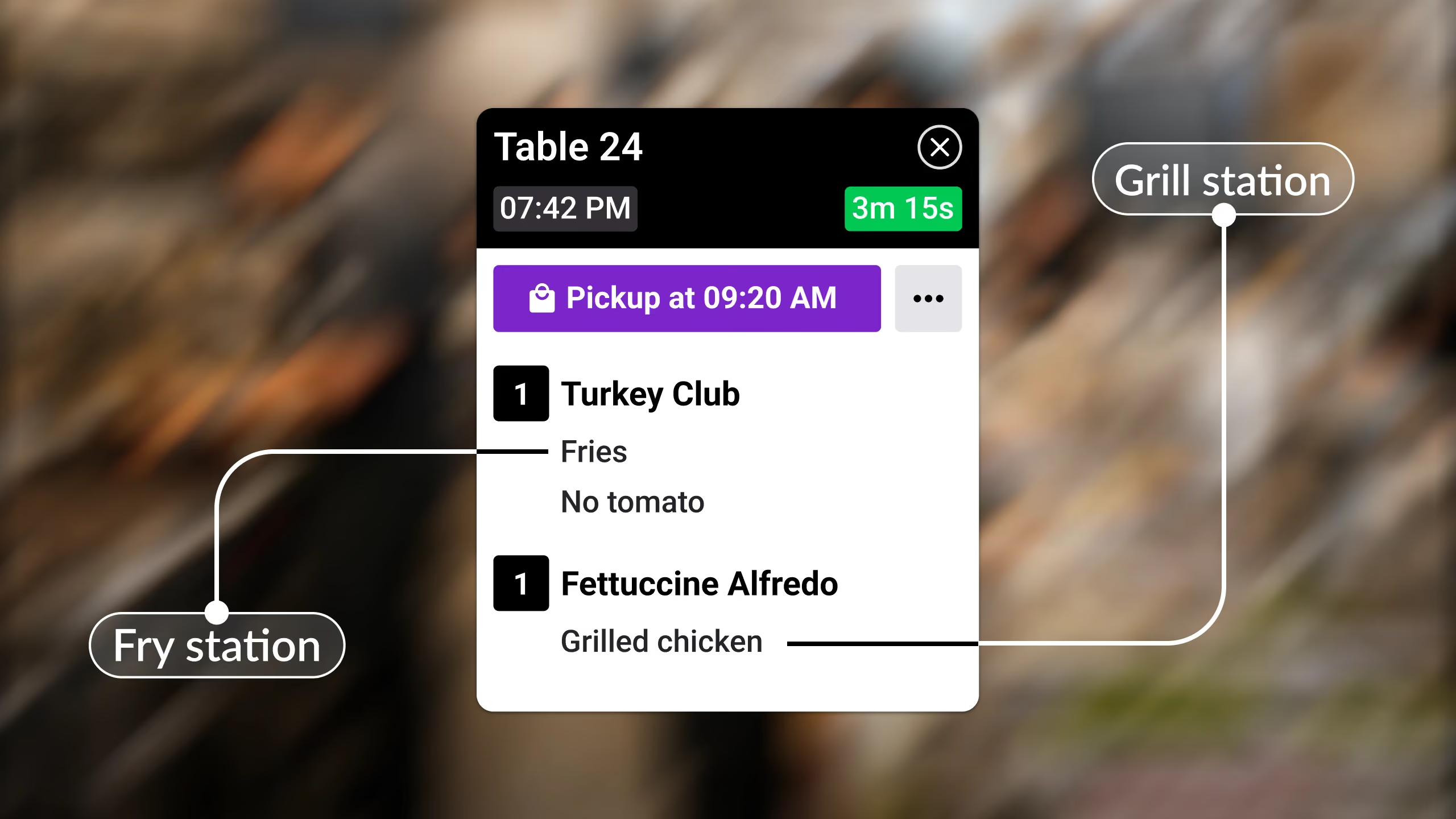
Send an item to a station based on its modifiers, not just its menu category, so the right cook sees it. A salad with grilled chicken lands on the grill screen, without leaving its other stations.
Try a hands-on interactive demo
Explore Fresh KDS with our interactive demo. See how simple order management can be.
In most kitchens, items route by category. Salads go to the cold station, burgers to the grill, drinks to the bar. But some items only need to reach a station because of what's added to them. A Caesar salad belongs on the cold station, right up until someone orders it with grilled chicken, and now the grill cook needs to see it too.
With Modifier Routing, Fresh KDS can send an item to a station based on a modifier it carries, not just the category it belongs to. The salad shows up on the grill screen because of the chicken, while it continues to appear on the stations it normally routes to.
Key Benefits
Get Items to the Right Cook – Route an item to a station based on its modifiers, even when its category never would.
Keep Existing Routing Intact – Modifier filtering is additive, so items still appear on every station they already route to.
Send Just the Item, Not the Order – Only the matched item is pulled onto the station, not the entire ticket.
Cut Screen Clutter – An optional per-screen setting trims the item down to just the modifiers that pulled it there.
No Menu Rework Needed – Set it up per screen without re-tagging items or rebuilding categories.
How It Works
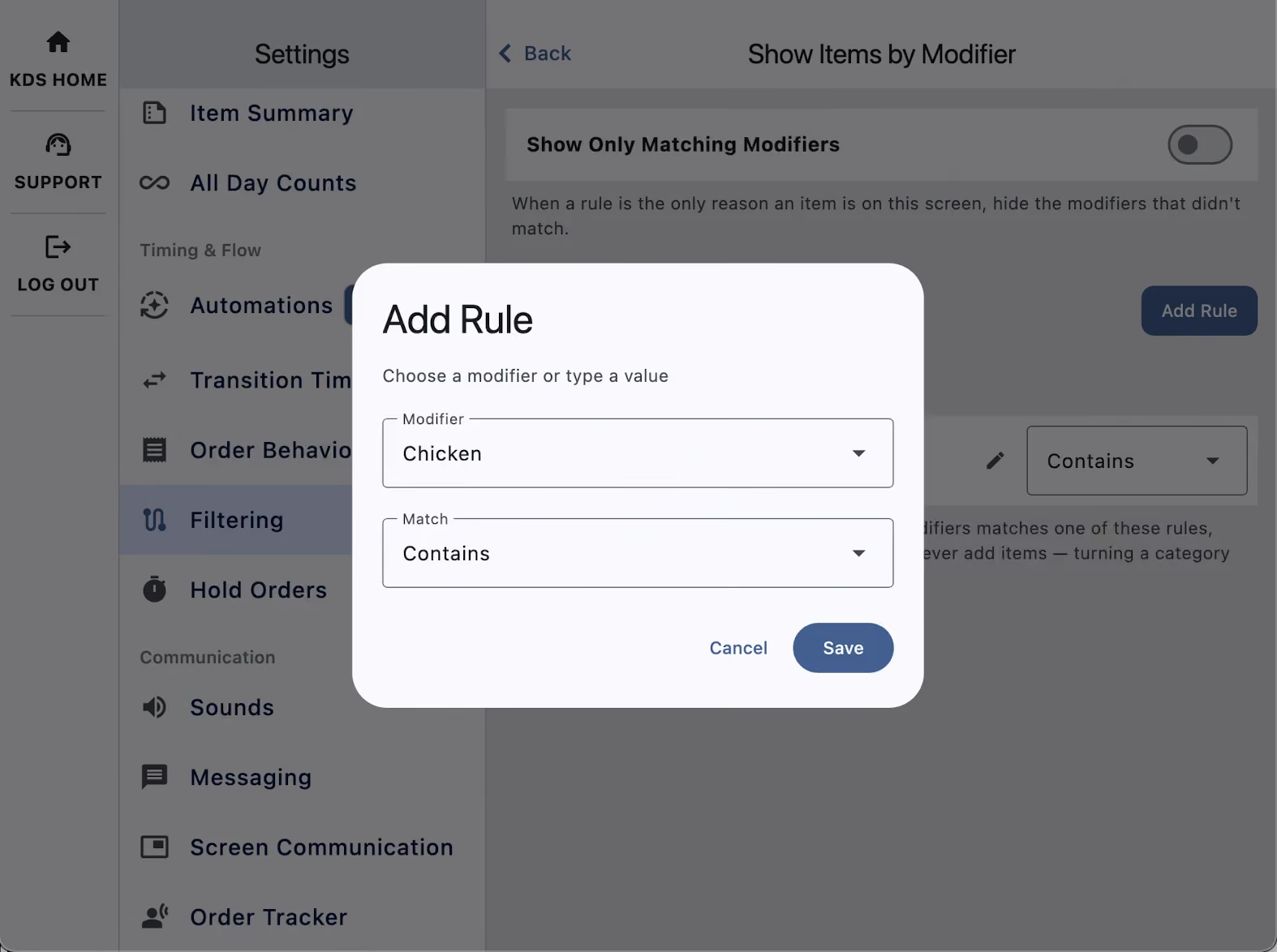
Set a Rule Per Screen – On the device, open Settings > Filtering and use the Show Items by Modifier section.
Add the Modifier – Tap Add Rule, choose the modifier and its matching rule, then Save.
Items Route Automatically – Any item carrying that modifier appears on the screen from then on, every shift.
Show Only Matching Modifiers – Turn on this optional setting to display "Caesar Salad, grilled chicken" instead of the full item. Special instructions and kitchen notes always show, and tickets and labels still print in full.
Modifiers are learned from live orders, so a modifier only appears in the filtering list once the screen has seen an order that uses it. If you don't see one you expect, send a test order and check again.
Begin your Fresh KDS 7-day trial today by setting up your account. The process is completely free, and only takes a few minutes. No credit card is needed, and you can cancel anytime.
.avif)

.avif)



.png)


.avif)




.avif)
.avif)


.png)


.webp)


