Give every screen that does the same job, at every location, one shared set of settings. Update it as your kitchen changes, push it to every screen on it, and see which ones are running it.
Try a hands-on interactive demo
Explore Fresh KDS with our interactive demo. See how simple order management can be.
A kitchen's screens never stay set up for long. A new menu item launches, drive-thru timers get tighter, a store opens, a station changes job. Each change has to reach every screen it applies to, and stay there. Made one screen at a time, it is slow, and over a few months no two locations' expo screens work quite the same way.
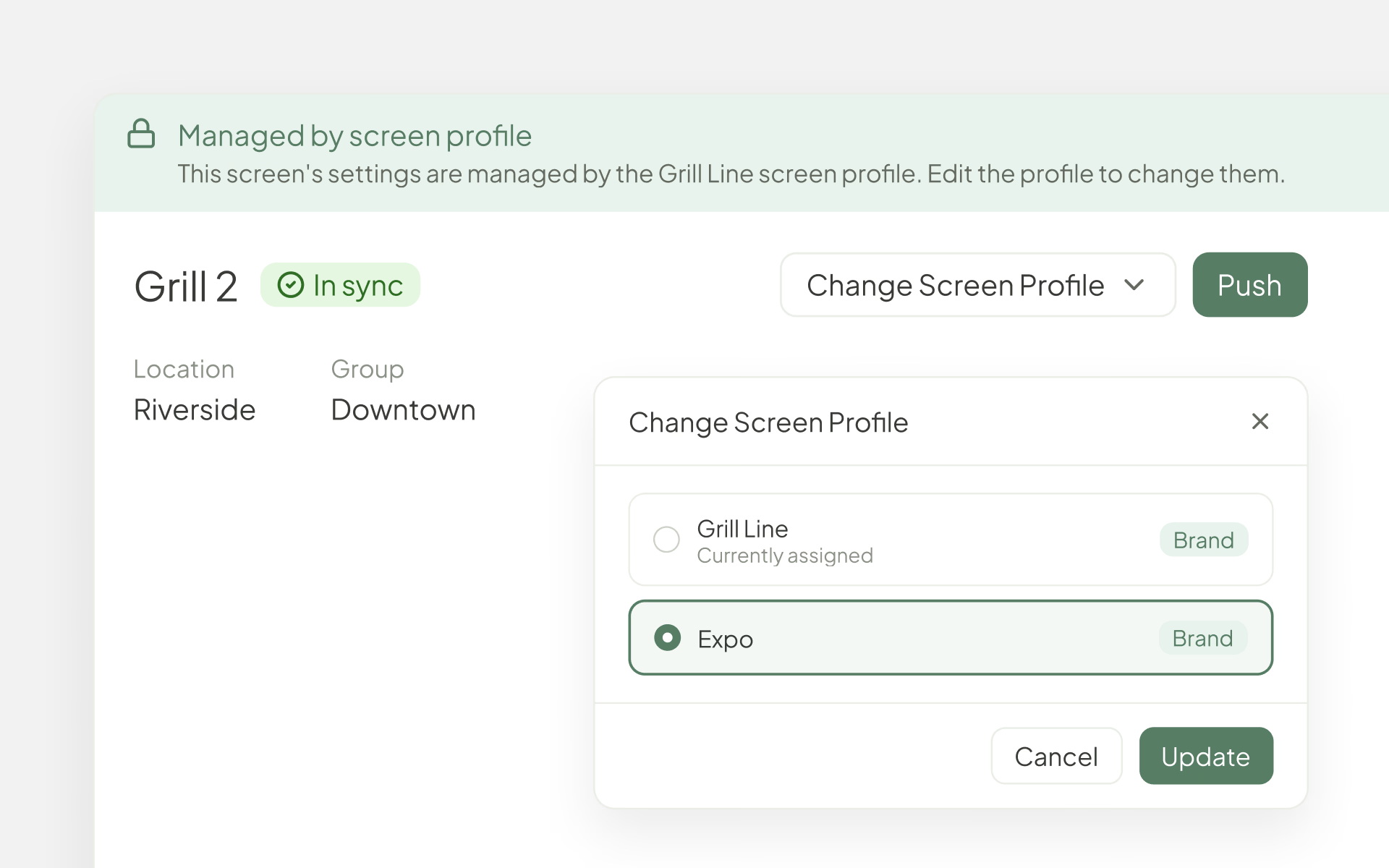
Introducing Screen Profiles in the Fresh KDS web app. A screen profile is one shared set of screen settings that every screen doing the same job follows. Change the profile, push it, and every screen on it picks up the change. Then see which screens are running it.
One standard for every screen that does the same job
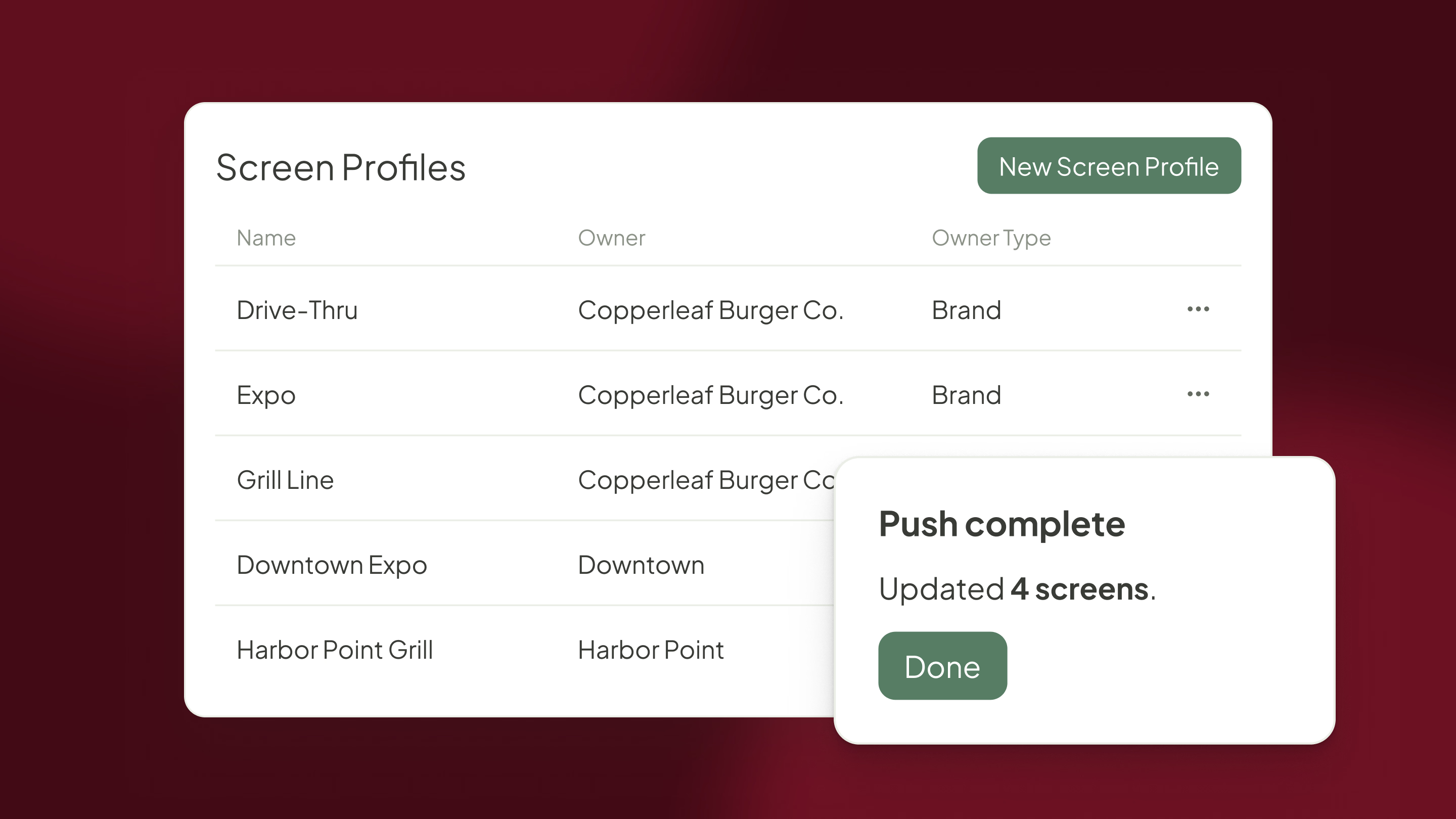
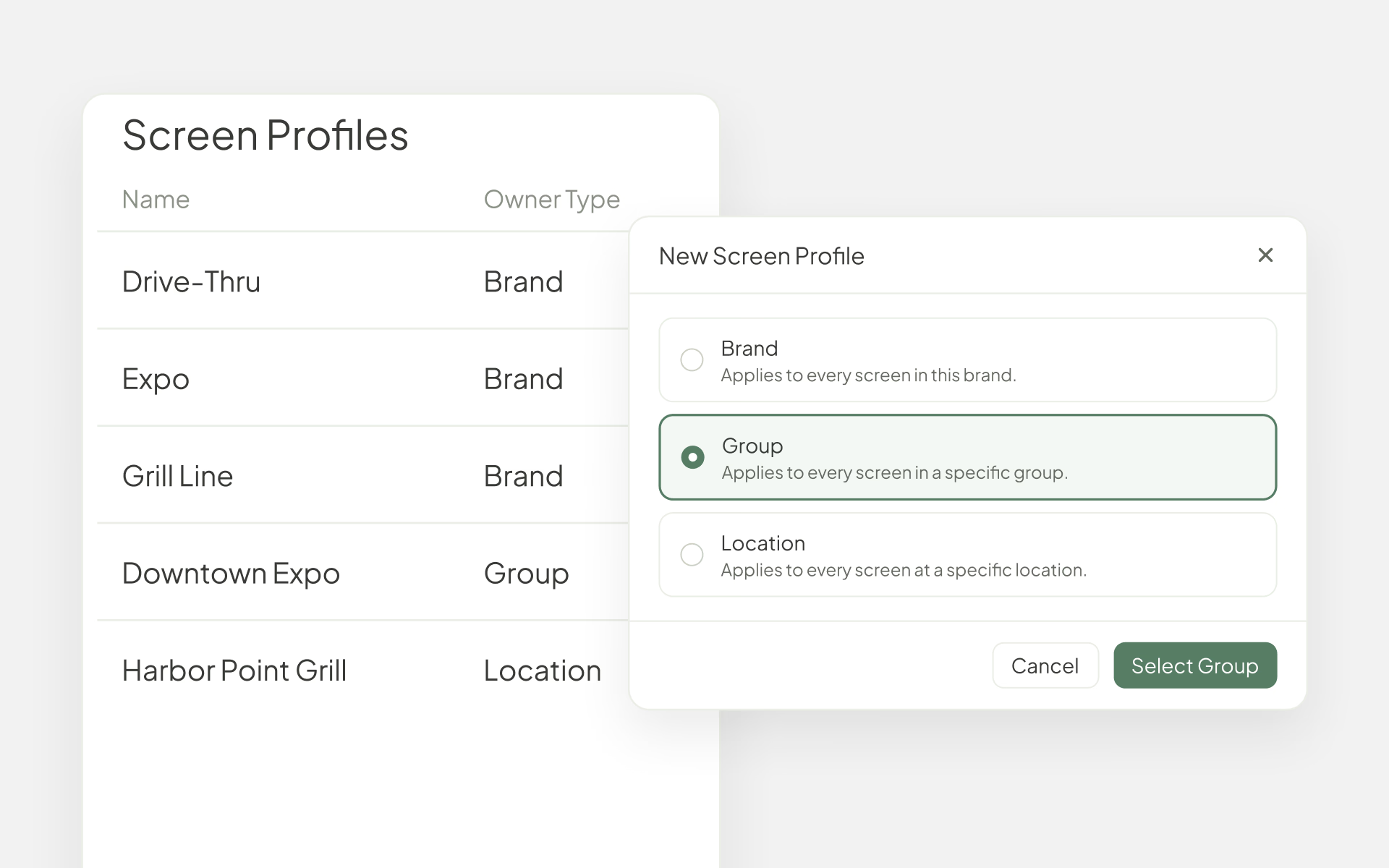
Build a profile for each job in your kitchen, like Expo, Grill Line, or Drive-Thru. Each profile holds that job's settings: display mode, ticket colors, item summary, order behavior, hold orders, sounds, and automations. Then decide how far it reaches. A profile can apply to your whole brand, a group of locations, or a single location.
That reach is how you handle the exceptions. Keep one Expo profile for the whole brand, then give a group of locations, or a single store trying something new, a profile of its own.
Change the standard, and every screen follows
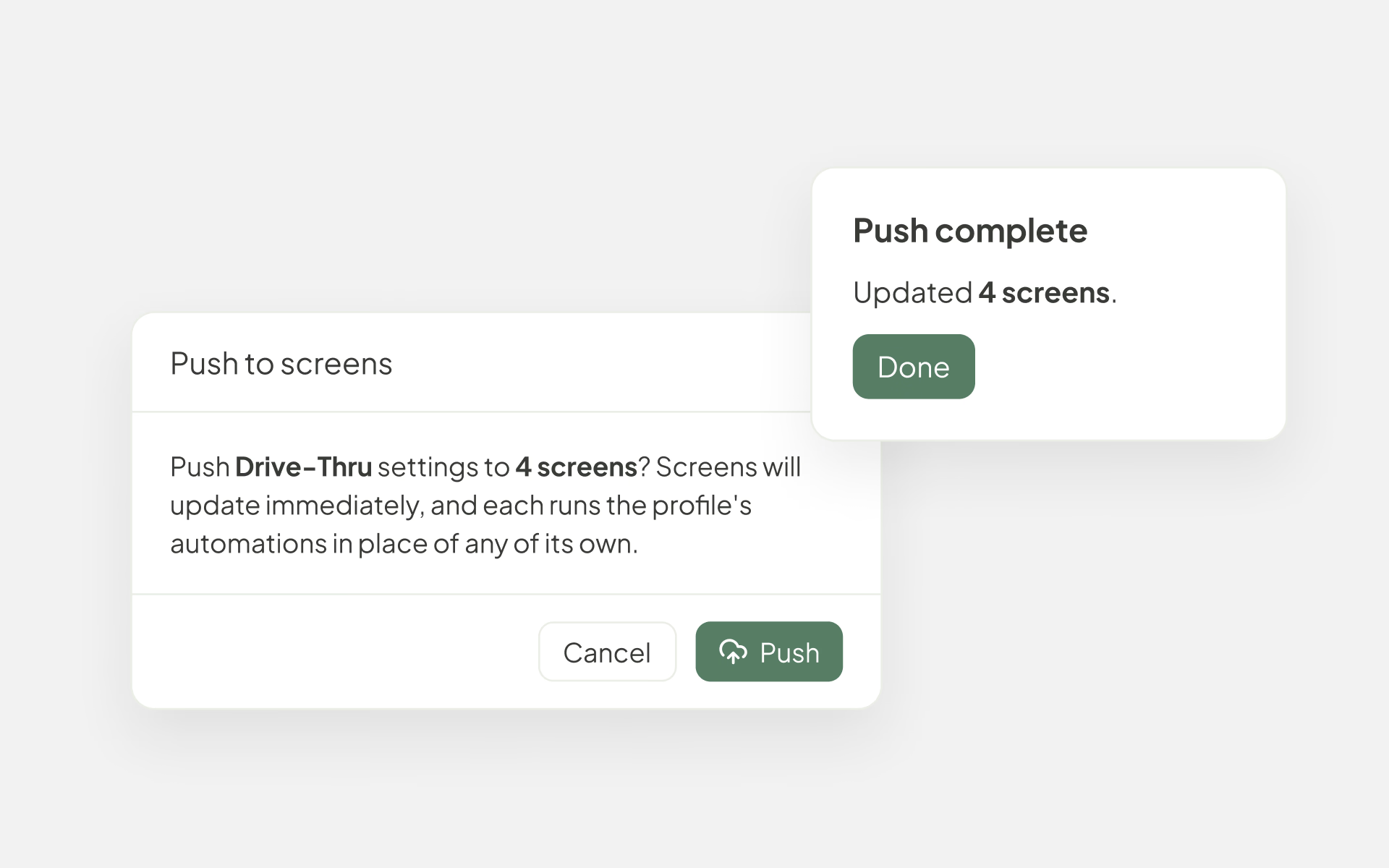
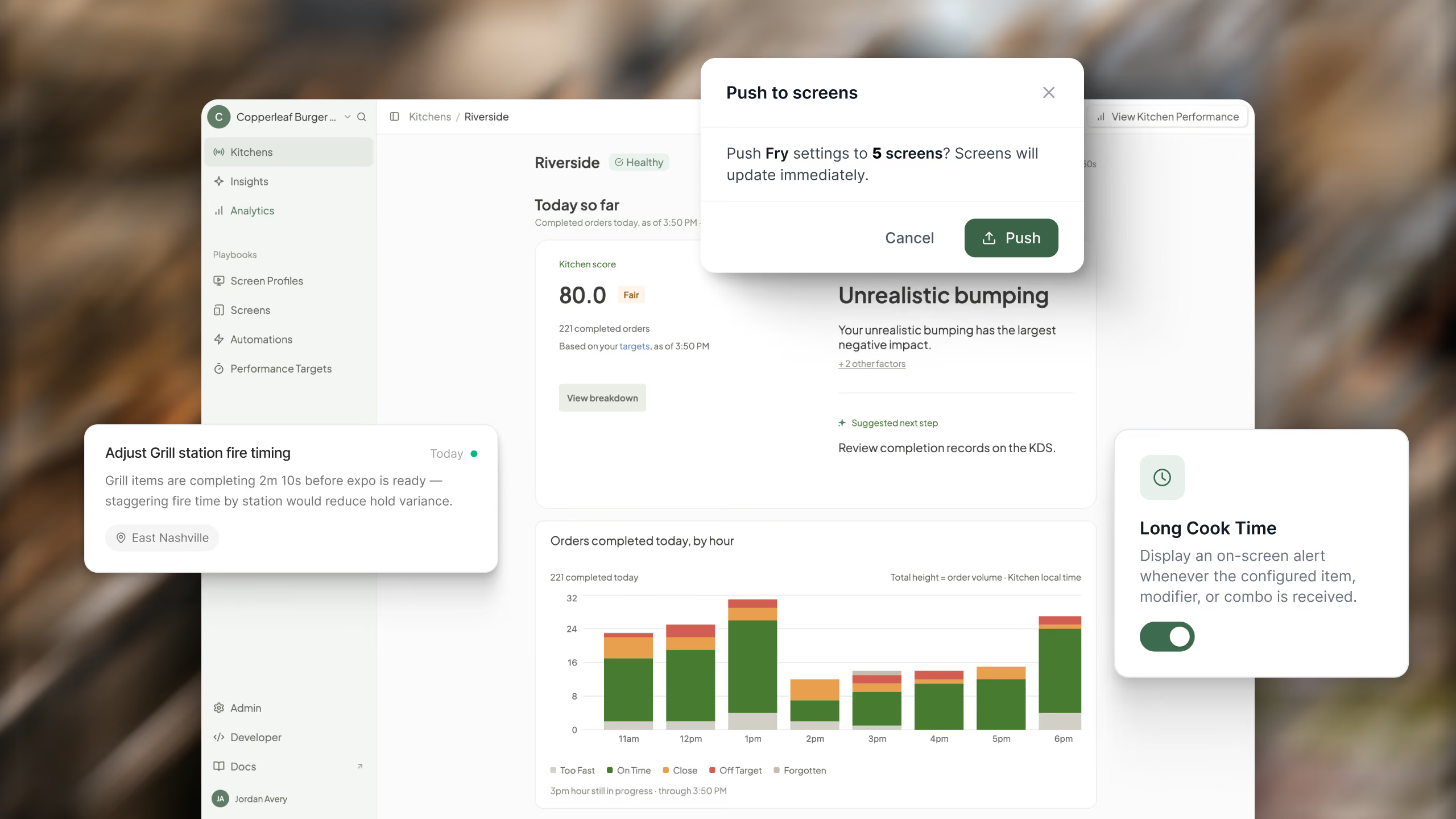
Say your brand decides drive-thru tickets should turn red after 7 minutes instead of 8. Open the Drive-Thru profile, change it once, and save. Saving never changes a kitchen on its own, so you can make your changes first and send them out together. When you're ready, press Push, and every screen on the profile updates.
When the push finishes, the web app tells you how many screens were updated. The change shows up on the screens in the kitchen without an app update or a restart.
See which screens are running the latest settings
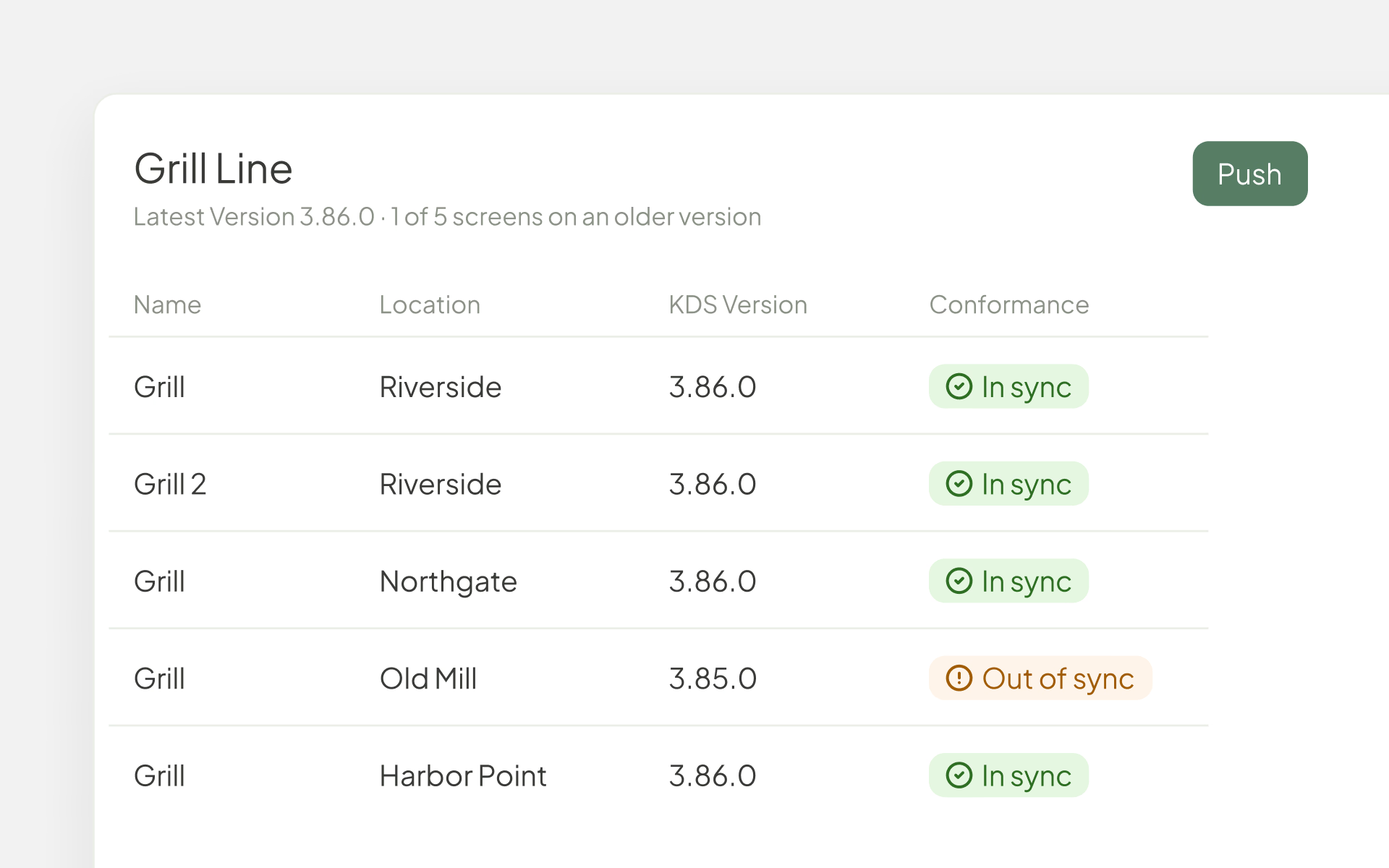
Every screen on a profile shows whether it is In sync or Out of sync. In sync means the screen has picked up the profile's latest settings. Out of sync means it hasn't yet: maybe the latest change was saved but not pushed, or the screen was offline when it went out. You can see at a glance which kitchens are on the standard and which ones need a look.
Each profile also shows how many of its screens run an older KDS version, so you know where an update is due before a new setting depends on it.
New screens and new stores start on the standard
When a store opens or a screen is added, assign it to the right profile, and it starts with the same settings as every other screen that does that job. When a screen changes job, say the second grill screen becomes an expo screen, switch it to a different profile.
A screen on a profile follows the profile, so its settings don't wander off between pushes. With Local Editing, you choose which settings tabs staff can still change on the screen itself, for example the filters a station adjusts during a shift.
Roll out automations the same way Add an automation to a profile and push it, and every screen on the profile runs the profile's automations in place of any of its own. Learn more about Automations.
Works with Cross Screen Communication Screen Communication connects a screen to the other screens at its location, so it stays set on each screen, even when the screen follows a profile. Learn more about Cross Screen Communication.
Available for enterprise brands
Screen Profiles and location groups are available for enterprise brands, and Fresh turns them on for your brand. Who can create and push profiles is controlled by the Manage Screen Profiles & Groups permission. Editing a single screen from the web app is included on every plan.
Ready to run every location from one standard?
New to Fresh KDS?
Create your Fresh KDS account and start capturing kitchen data in minutes.
Open Screen Profiles under Playbooks in the web app. A good first step is to pick one job, like Expo, set up its profile the way your best store runs it, and assign those screens. If you don't see Screen Profiles, ask your Fresh account team about turning it on for your brand.
Begin your Fresh KDS 7-day trial today by setting up your account. The process is completely free, and only takes a few minutes. No credit card is needed, and you can cancel anytime.
.avif)





.png)


.avif)





.avif)
.avif)


.png)


.webp)


