Screens
Screens
Manage every kitchen screen from one place
See every Fresh KDS screen across your locations, change its settings from your browser, and send the update to the kitchen without touching the device.
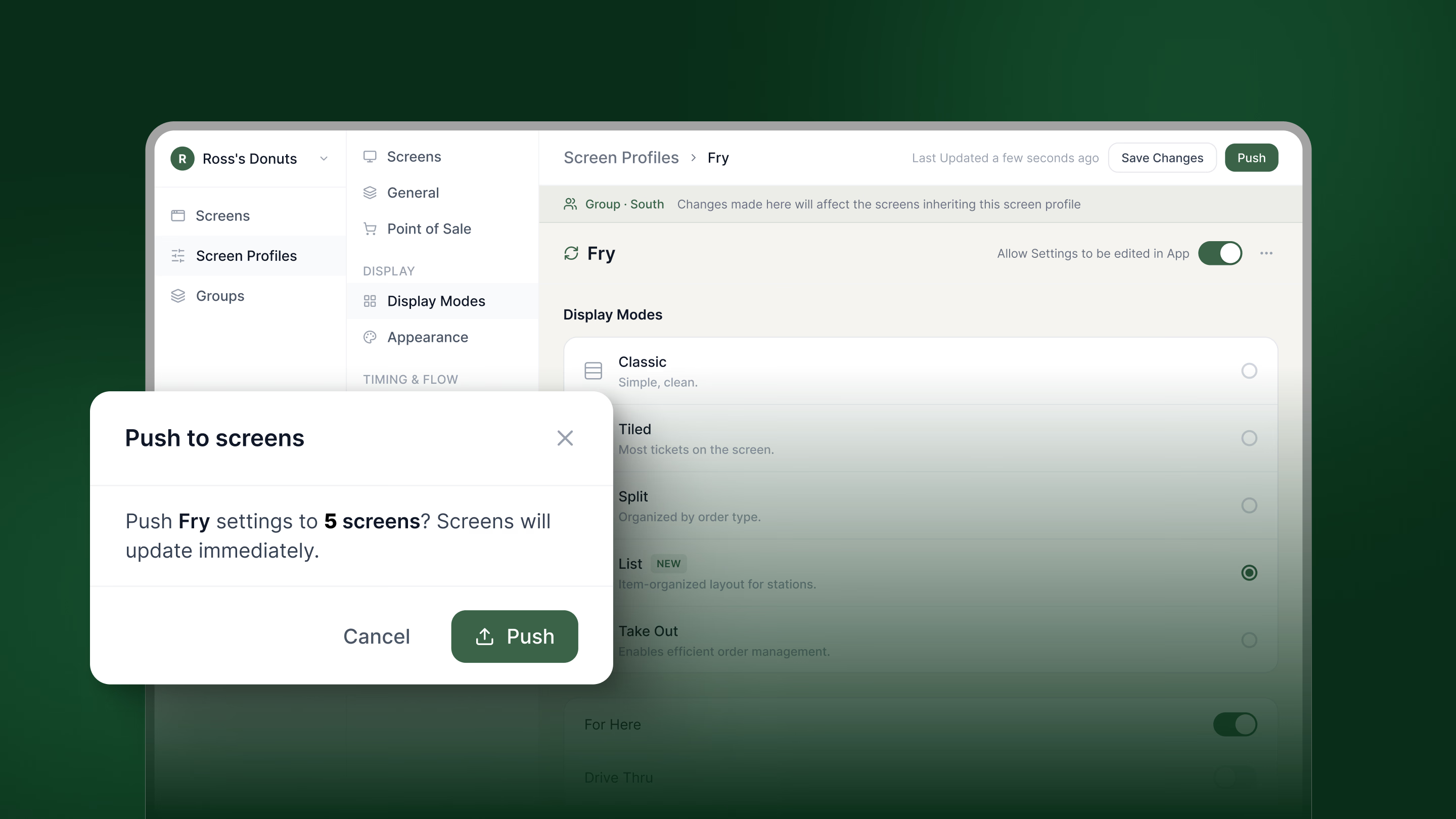
See every Fresh KDS screen across your locations, change its settings from your browser, and send the update to the kitchen without touching the device.
Explore Fresh KDS with our interactive demo. See how simple order management can be.
When screen settings can only be changed on the screen itself, one small change across 40 screens means 40 trips to the kitchen, or 40 remote sessions. So the expo timer that should have changed last week often still hasn't.
Screens in the Fresh KDS web app lets you see every screen across your locations and change its settings from your browser. Make the change once, and the kitchen picks it up without anyone touching the device.
Screens lists every Fresh KDS screen in your brand in one place. For each one you can see its location, whether it is online or offline, which KDS version it is running, and which screen profile it follows. Search by screen or location, or filter by location, group, or KDS version to find the one you need.
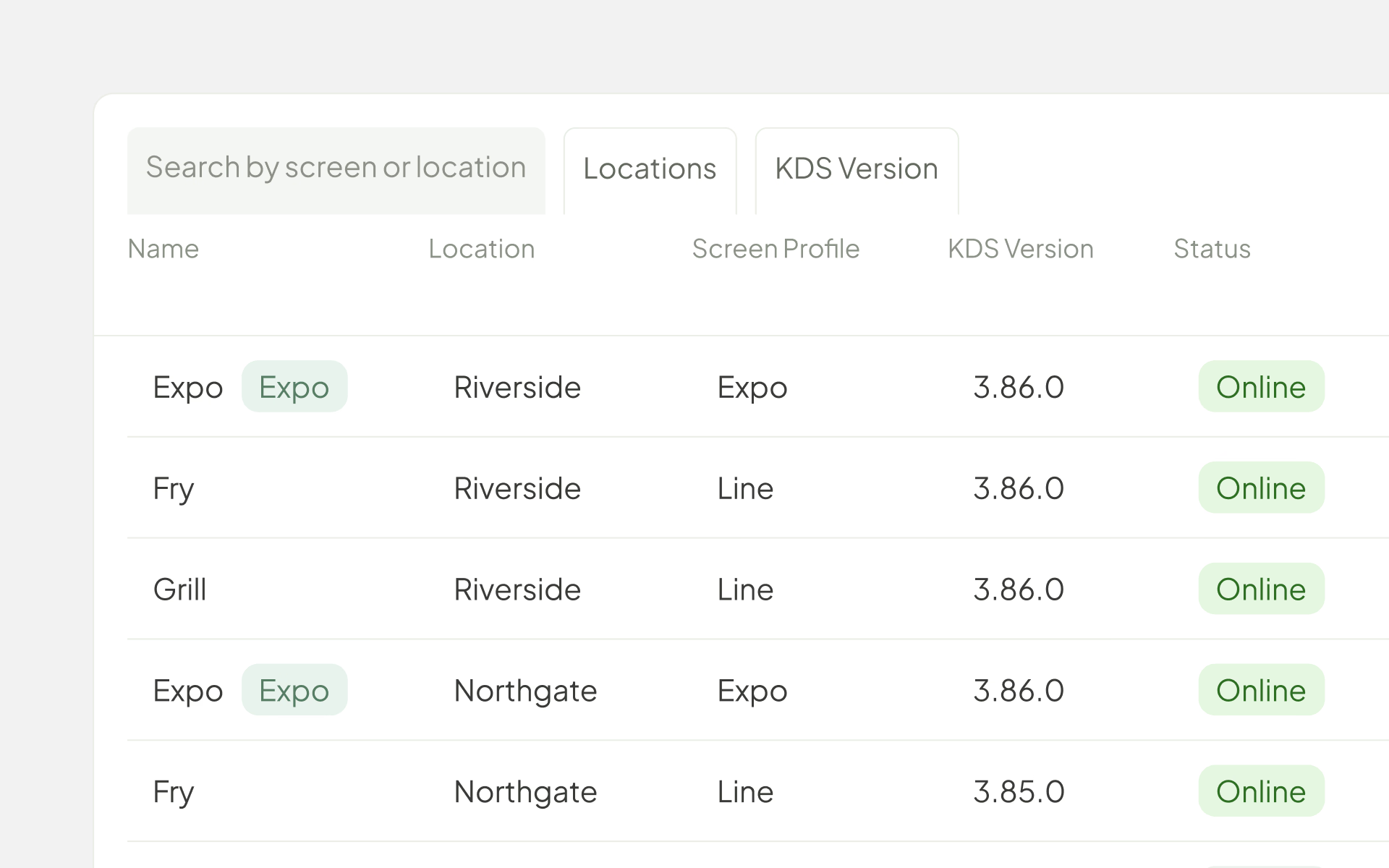
When a newer KDS version is out, the screen tells you, so you know which kitchens are running behind before it causes a problem. Screens also tells you when a location has no expo screen set up.
Open any screen to see the same settings your team would find on the device, from display modes and ticket colors to item timing, order behavior, and sounds. Change what you need and save. The update reaches the screen in the kitchen without an app update or a restart.
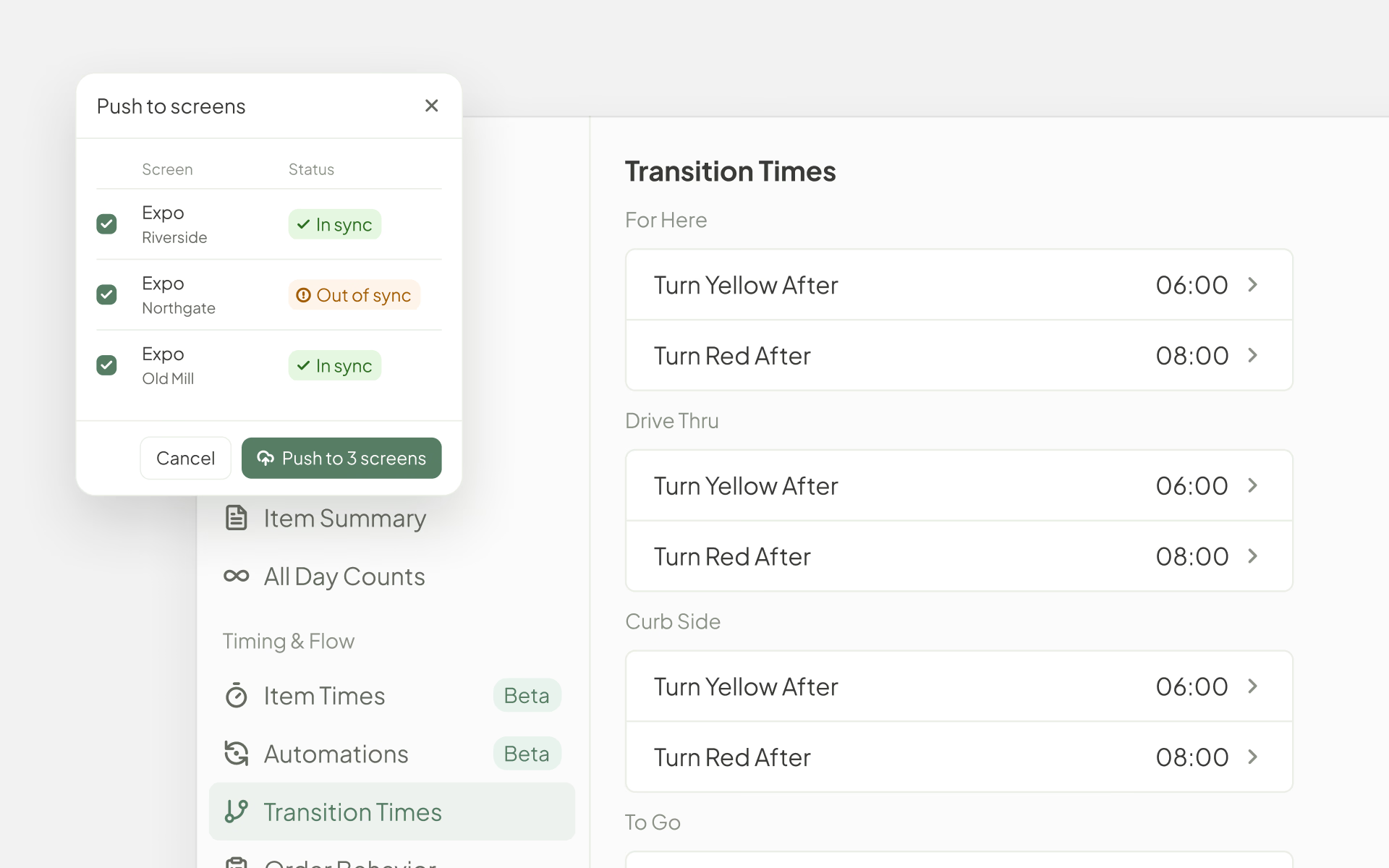
When screens share a screen profile, Push sends its settings to the screens you choose. Before you push, you can see which screens are already in sync and which are not.
Small fixes get quicker too. Rename "Screen 3" to "Fry Station" from your laptop, and the new name shows on the screen in the kitchen seconds later.
Some settings should stay the way you set them. Others, your team needs to adjust during a shift. Local Editing lets you choose, tab by tab, what staff can change on the screen itself. For example, let them change Filtering and keep everything else locked. On a locked tab, staff can still see the settings, they just can't change them.
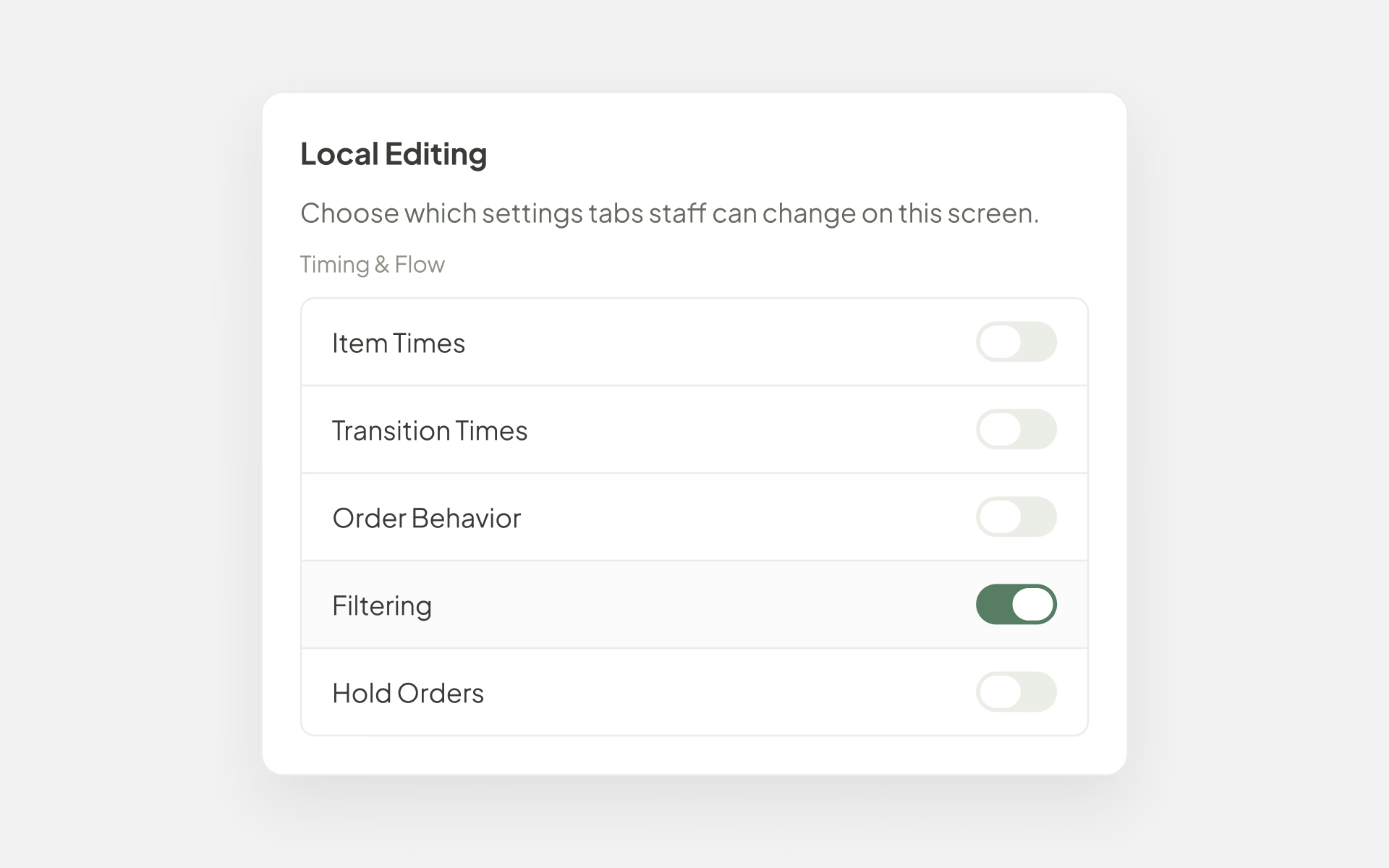
Local Editing works tab by tab on screens running KDS 3.85.0 or later.
For enterprise brands, Screen Profiles let you save a set of screen settings once and apply it to every screen that should work the same way. A profile can cover your whole brand, a group of locations, or a single location, so the expo screen in one store works the same way as the expo screen in every other store.
Saving a profile never changes a kitchen on its own. When you are ready, push it, and the web app tells you how many screens were updated. A screen you add later picks up the same settings as soon as you assign it to the profile.
Works with Automations
Build an automation once, then turn it on for any screen or screen profile. Learn more about Automations.
Works with Cross Screen Communication
Screen Communication connects a screen to the other screens at its location, so you set it for each screen, even when the screen follows a profile. Learn more about Cross Screen Communication.
Screens is included on every Fresh KDS plan. You can change the settings for every feature your plan includes. Screen Profiles and location groups are available for enterprise brands.
Create your Fresh KDS account and start capturing kitchen data in minutes.
Sign in to the web app and open Screens to see every screen across your locations. A good first check is which screens are offline or running an older KDS version.
Discover all the ways you can streamline your kitchen operations with Fresh KDS.
Begin your Fresh KDS 7-day trial today by setting up your account. The process is completely free, and only takes a few minutes. No credit card is needed, and you can cancel anytime.
Get started - it's free.png)


.webp)


.avif)





.png)


.avif)



.avif)
.avif)


